This guide explains step by step what you can do on DaddyBoy. If you cannot find something, write to us via Help & contact.
Last updated: 25 October 2026
Welcome to DaddyBoy, the platform for Daddys and Boys. This handbook explains step by step what you can do on the site: how to set up your profile, find others and chat, while staying safe and discreet. You can read it from the start or use the list of chapters to jump straight to whatever you have a question about.
The pictures show the site on a phone. On a computer everything looks a little wider, but it works the same way.
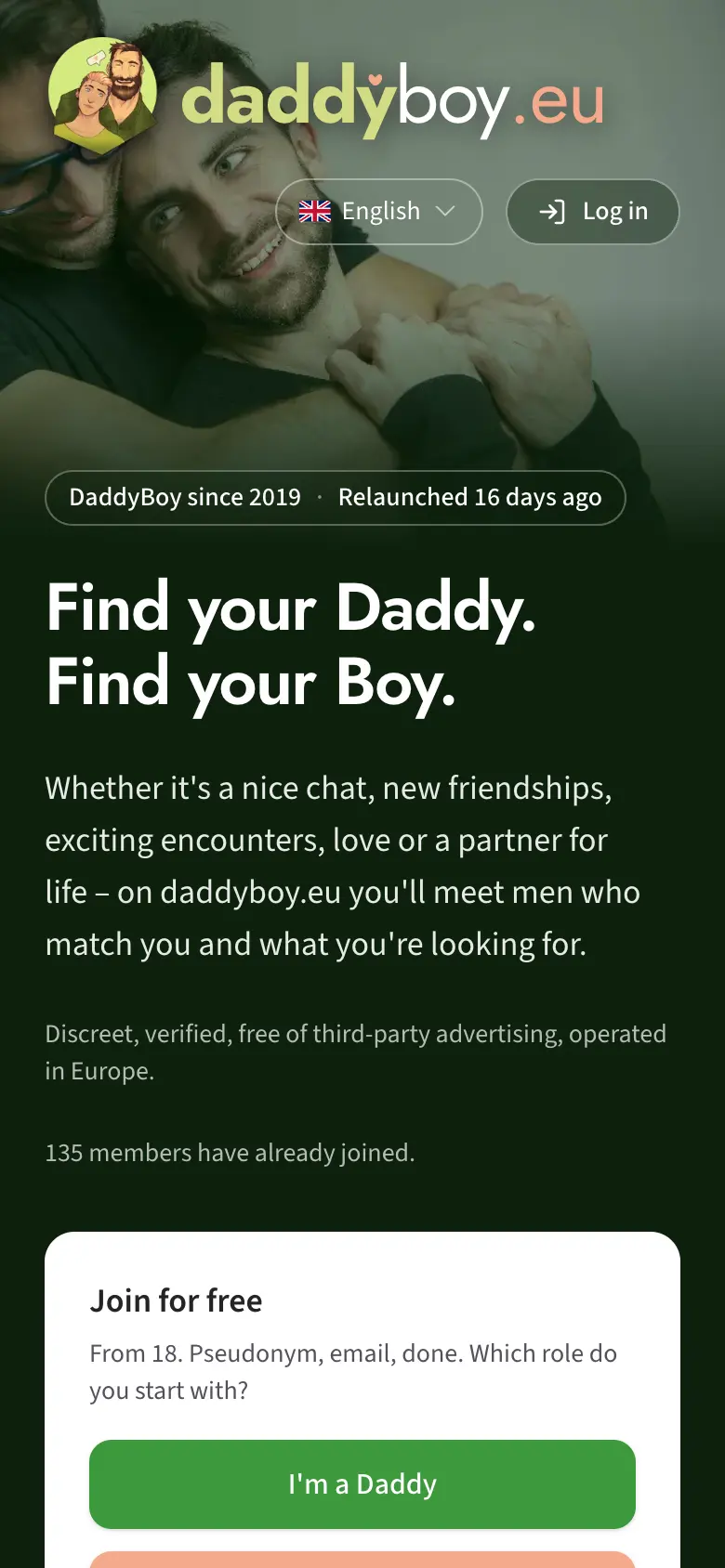
1. Creating an account and logging in
Registering
On the start page, tap Register. You will need:
- Pseudonym: Your name on the platform, 3 to 30 characters. It is the only name others see; you don't need to give your real name.
- Email address: Only for logging in and for messages about your account. It never appears on your profile. If the address looks like a typo, say "feenet.de" instead of "freenet.de", the site asks you to check it rather than quietly accepting it.
- Date of birth: You must be an adult. Once your age is verified, the checked date applies.
- Password: At least 8 characters. Later you can add a passkey and will hardly need the password any more.
- Consents: Terms of use, confirmation of your age, and consent to the processing of your sexual orientation and of what you choose to say about your sex life. You can't sign up without these four, because the platform is made for gay men. The news by mail below them is optional.
If you have a Voucher code, for example from a card you picked up in a bar, enter it in the "Voucher code or short link" field or scan the QR code on the card. The free Premium days are added to your account as soon as you have confirmed your email address. No subscription is created and you don't enter any payment details. If you came via a friend's invitation link, we remember that automatically (chapter 12). If someone told you or wrote down their short link, for example dboy.eu/kanga, enter it in the same field: that counts like the invitation link.
After signing up, you will receive an email with a link to confirm your email address. Only then can you set up your profile. If you can't find the email, check your spam folder or have a new link sent to you after logging in. If the address stays unconfirmed, we remind you once after 2 days with a new link. After 14 days we delete an account that was never confirmed, along with everything you entered; the exact date is in the reminder.
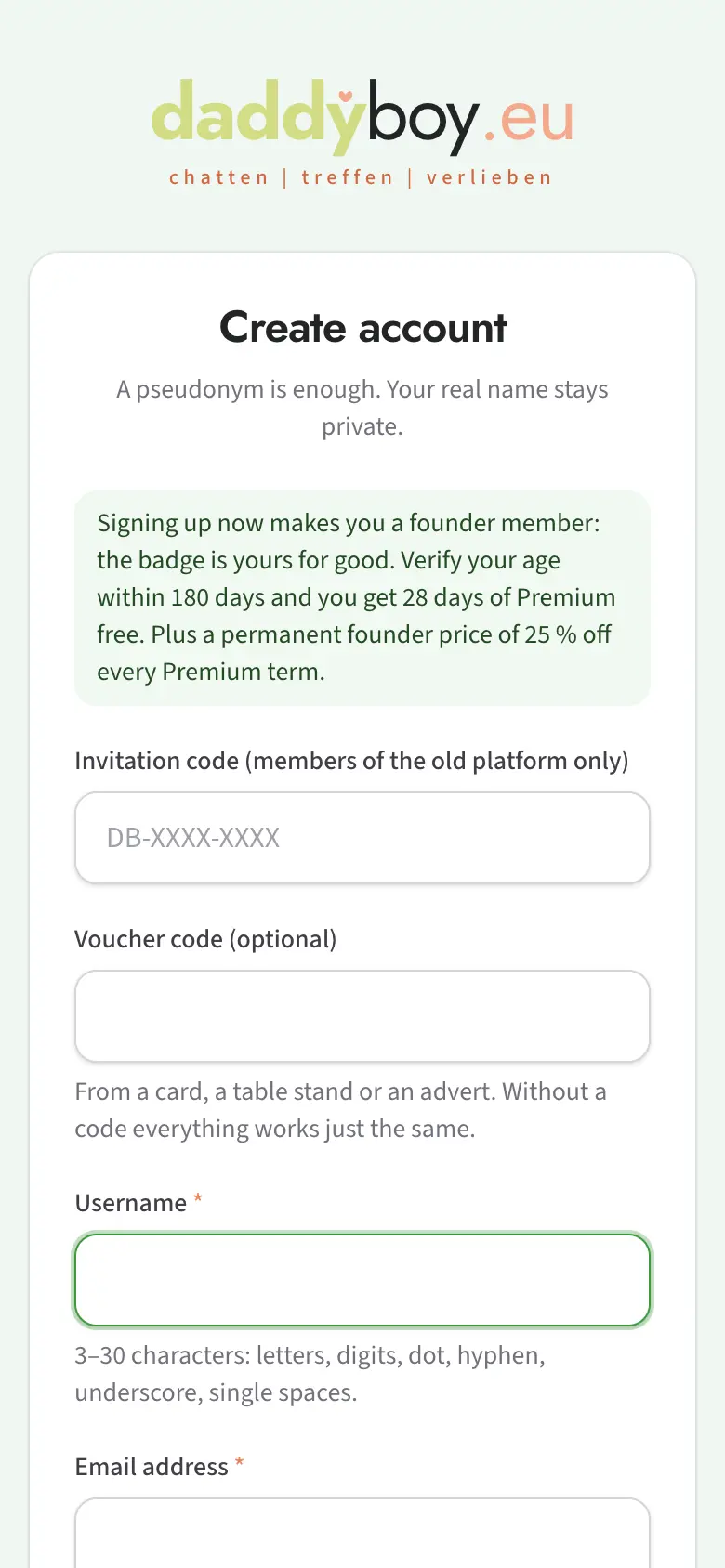
Once you submit the form, we send you an email. Your account only becomes active once you have clicked the link in it.
Logging in
In the Email or pseudonym field, enter either one, plus your password. Or log in with a passkey once you have set one up. If you have turned on two-factor login, the site asks for the code from your authenticator app.
Forgot your password? The login page has a "Forgot password" link. There you need your email address, not your pseudonym, because the reset link is sent by email. If the address is unknown, the site tells you so plainly, so you notice if you have tried the wrong one of several addresses.
2. First steps
After you log in for the first time, a short assistant walks you through the essentials:
- I am … Daddy, Boy or both.
- I'm looking for … Who you want to meet.
- Postcode and country. Required for the radius search. Your town and region follow from your country and postcode. Others only see the town, never the postcode.
Everything else, such as a few words about yourself, you add afterwards under Edit profile.
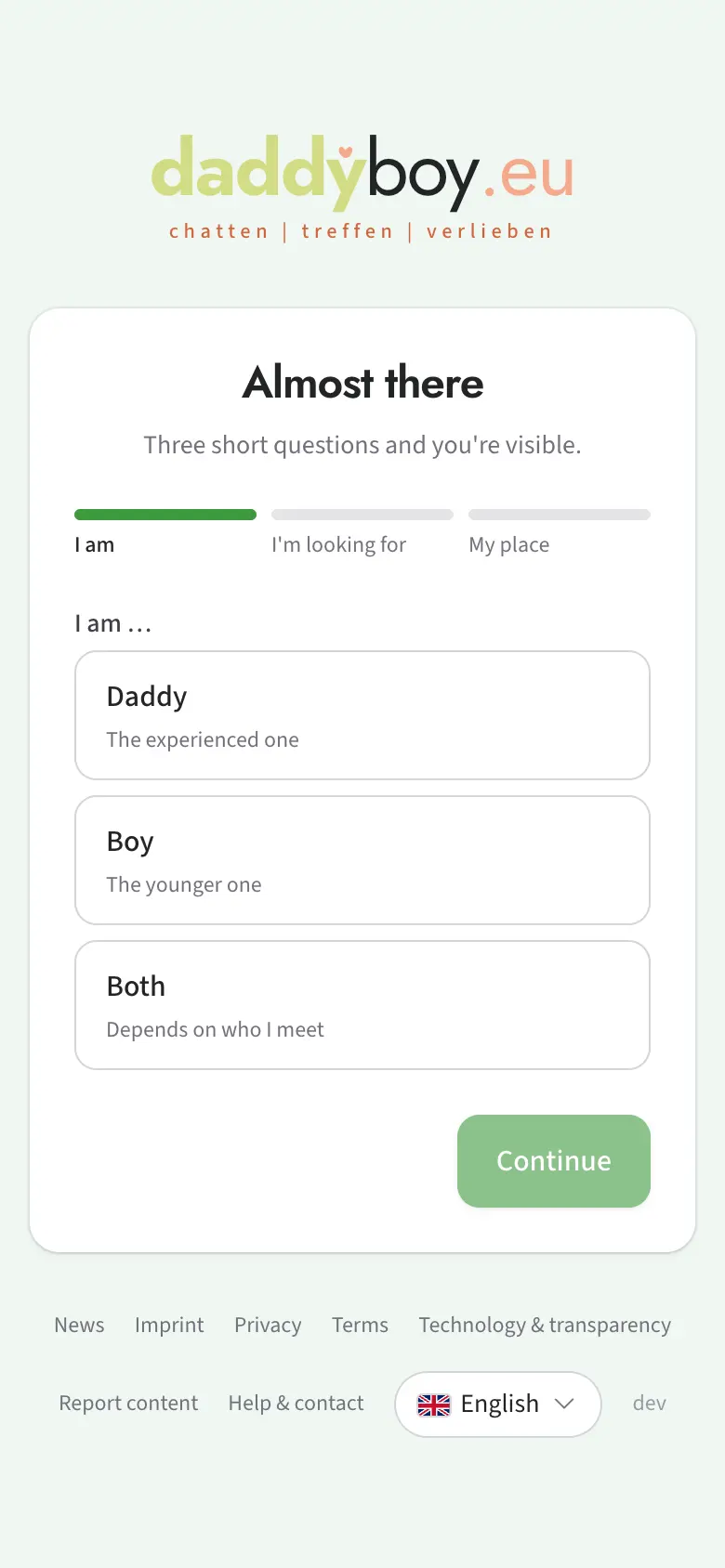
After that you land on your Profile pictures, because without a main picture you are hardly found in the search (chapter 4), and you start new chats only with a main picture (chapter 8). Your home page in the members' area is Discover (chapter 6).
Navigation
At the bottom on a phone and in the sidebar on a computer you will find the main areas:
| Area | What you'll find there |
|---|---|
| Discover | For you, New and active today, suggestions, lists, figures for your region |
| Search | All members, with filters and sorting |
| Chats | Your conversations, requests and the archive |
| Likes | Matches, who likes you, what you have sent, profile visitors, feedback |
| Profile | Your profile, pictures, galleries, search profile |
Under More you'll find the extra areas: Feed, News, Radio and Places. On a phone, "More" is the last item of the bottom bar and opens these areas upwards.
The account menu behind your name at the top right leads straight to every page of My account, to What's new, to this handbook, to the colour scheme, to the language, to the legal pages and to logging out. Notifications (the bell), your status and quick hide sit next to it as icons on a phone, and in the sidebar on a computer. A small coloured dot next to "What's new" means something has changed on the platform since your last visit. All changes are listed there, sorted into New, Improved and Fixed.
My account has these tabs: Overview, Membership, Age verification, Short link, Statistics, Points, Settings, Notifications, Security, Consents, Blocked members and My requests.
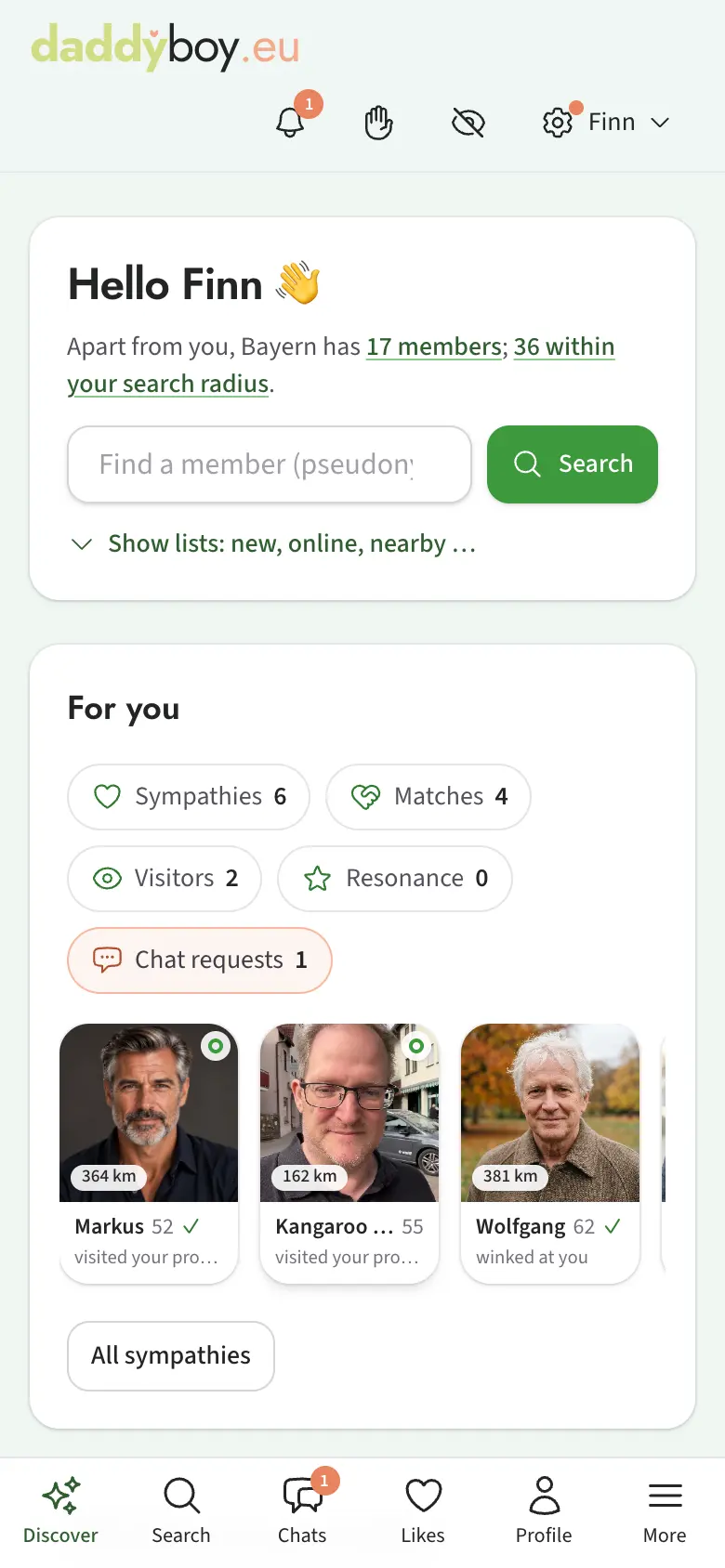
3. Your profile
Under Profile you see your profile the way others see it. A ring shows how complete it is. The more you fill in, the better the suggestions fit and the more likely you are to be found.
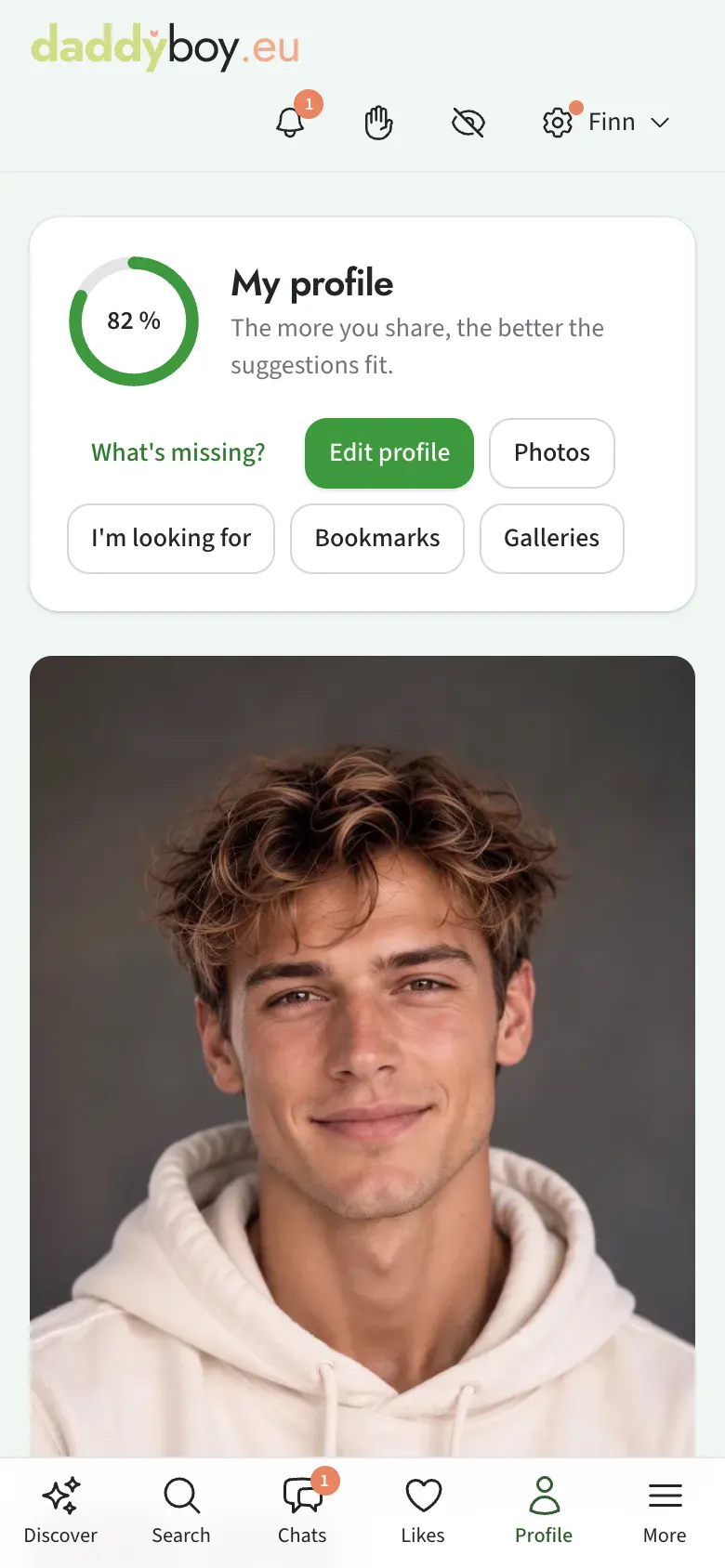
Edit profile is split into tabs. As long as you have changed something and not saved it yet, a bar saying "Unsaved changes" with the save button stays at the bottom of the screen, even in long lists.
Basics
Your role, the role you're looking for, a Headline shown in large type on your profile, and your About me text.
Three questions
You can answer up to three questions, for example what a perfect Sunday looks like for you. This makes your profile feel real and gives others a better way in than "Hi".
Location
Country and postcode. If you like, you can also share your device location. We round it to about one kilometre and never store your exact position. This is also where you'll find Travel mode (chapter 10).
The town on your profile can be clicked: a small map shows where it is, roughly how big it is, how far it is from the person looking, and how many members live there. Your postcode keeps apart towns that share the same name.
Traits
The other tabs are groups of traits. Everything in them is optional.
| Group | Contents |
|---|---|
| Physical details | Height, weight, build, hair, body hair, eyes. Intimate details are a specially protected part. |
| Life & relationship | What you're looking for here, relationship status, experience, whether you're out, everyday life with smoking, alcohol, languages and "What I like to drink" (up to twelve drinks), your partner profile |
| Meeting up & getting around | Where you live, whether people can visit you, how you prefer to meet for the first time, whether you travel to the other person, how you get around |
| Identity | Gender identity, pronouns. You decide whether others can see this group. |
| Sexuality | Position, safer sex, preferences. Specially protected. |
| Hobbies & interests | Sport, travel, cooking, free time and "Culture & media": what you like to listen to, watch and read, and what you play on, from PC and console to the Atari 2600 |
| Personality | Five areas with pairs of opposites such as "talkative or taciturn", up to five choices per area |
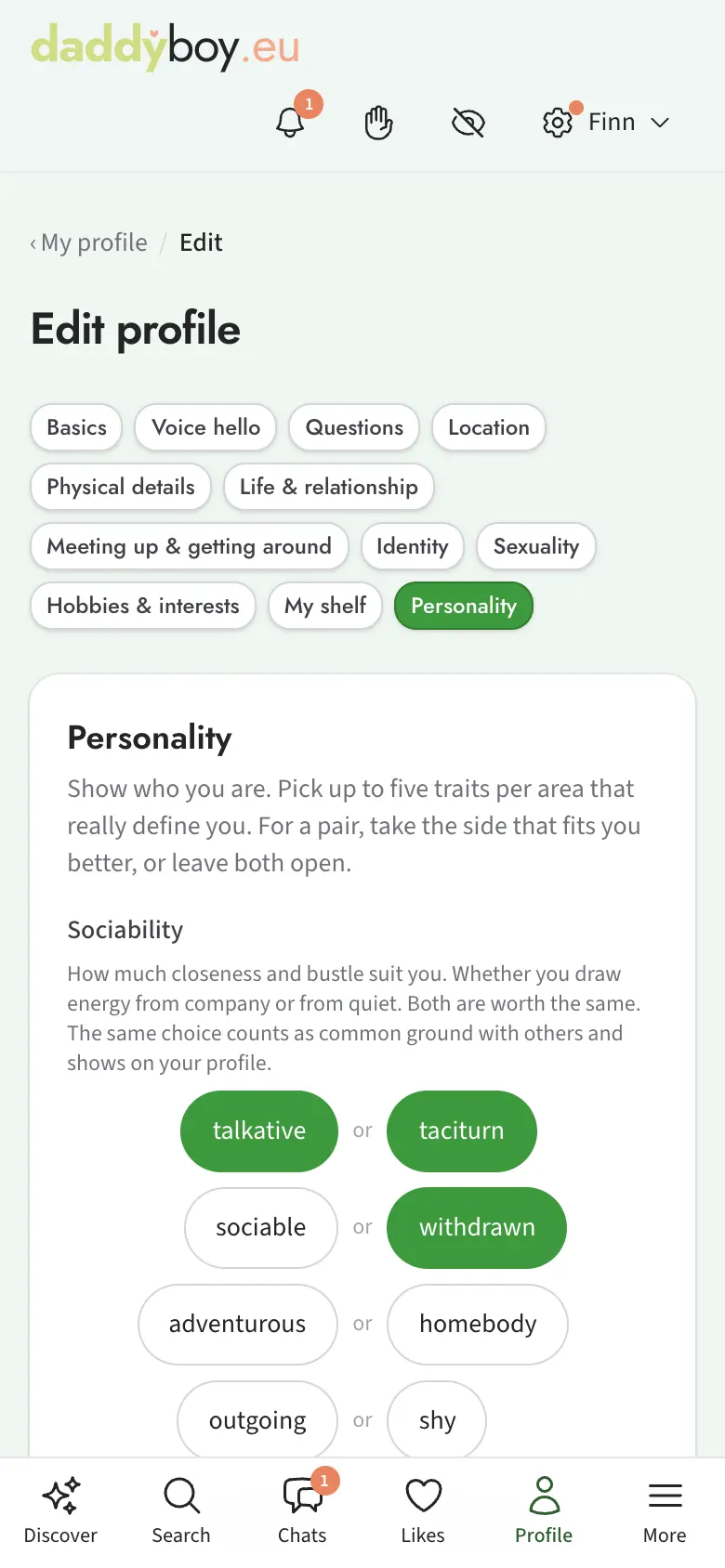
What does "specially protected" mean? Under data protection law, details about your sex life are especially sensitive. You only see and fill in these areas if you have agreed to their processing under My account › Consents. If you withdraw your consent, we delete these details immediately; the rest of your profile stays. In search they are never used to exclude anyone.
Notes: For many traits you can add a note if none of the options quite fits.
Something missing from a list? For some lists, such as drinks, you simply type what's missing below the list. We take a look and add it if it fits; it then shows on your profile without you having to do anything else. Until then, nobody but you sees the term.
My shelf
In the My shelf tab you collect the things that make you who you are: artists & bands, books, films & series, video games and board & card games, each in its own sub-tab with up to 20 entries. Type a name or title, pick the match from the list and say what it means to you, for example "fan", "seen live", "reading now", "want to watch" or "favourite". You can also give up to five stars and write a short comment. Every change to your shelf is saved straight away.
On your profile the shelf appears in the "Shelf" tab. Tapping a title opens a small card with a short text from Wikipedia and a few facts. Anyone who likes the same things as you sees them at the very top under "You have in common".
The titles come from open catalogues: artists from MusicBrainz; books, films, series and games from Wikidata. If you can't find a book there, below the results you'll see "Not there? Search Open Library"; this larger catalogue takes a few seconds. Only your search term is sent to the catalogues, nothing about you.
Voice hello
In the Voice hello tab you record a short introduction in your browser, up to 60 seconds. Only an introduction is allowed: no sexual content, no phone numbers, addresses or messenger names, and no other people. The team listens to your voice hello before anyone else can hear it; until then it says "Under review" and only you can hear it.
Once approved, your voice hello also shows its text, so that members who cannot hear can read it. Our software transcribes it on our own server. In the Voice hello tab you can correct the text if something was misheard, or empty it; then none is shown on your profile.
If your voice hello isn't approved, you get a message with the reason and can object for six months: the tab shows "Object to the decision", and the team usually replies within 48 hours. You can remove your voice hello or replace it with a new one at any time.
Partner profile
If you're with someone on DaddyBoy, you can link your profiles. Under Life & relationship you search for your partner's pseudonym and send a request. He confirms with "Yes, we are a couple" or declines; a decline is not reported to you. After that, both profiles show a link to the other. Each account can have one partner, and "Dissolve link" removes the connection at any time. With the "Show partner on the profile" switch under My account › Settings you hide it; if either of you turns it off, it disappears from both profiles.
Changing your pseudonym and date of birth
You change both under My account › Settings in the top section. Once your age is verified, your date of birth is locked, because it then comes from your ID.
4. Pictures
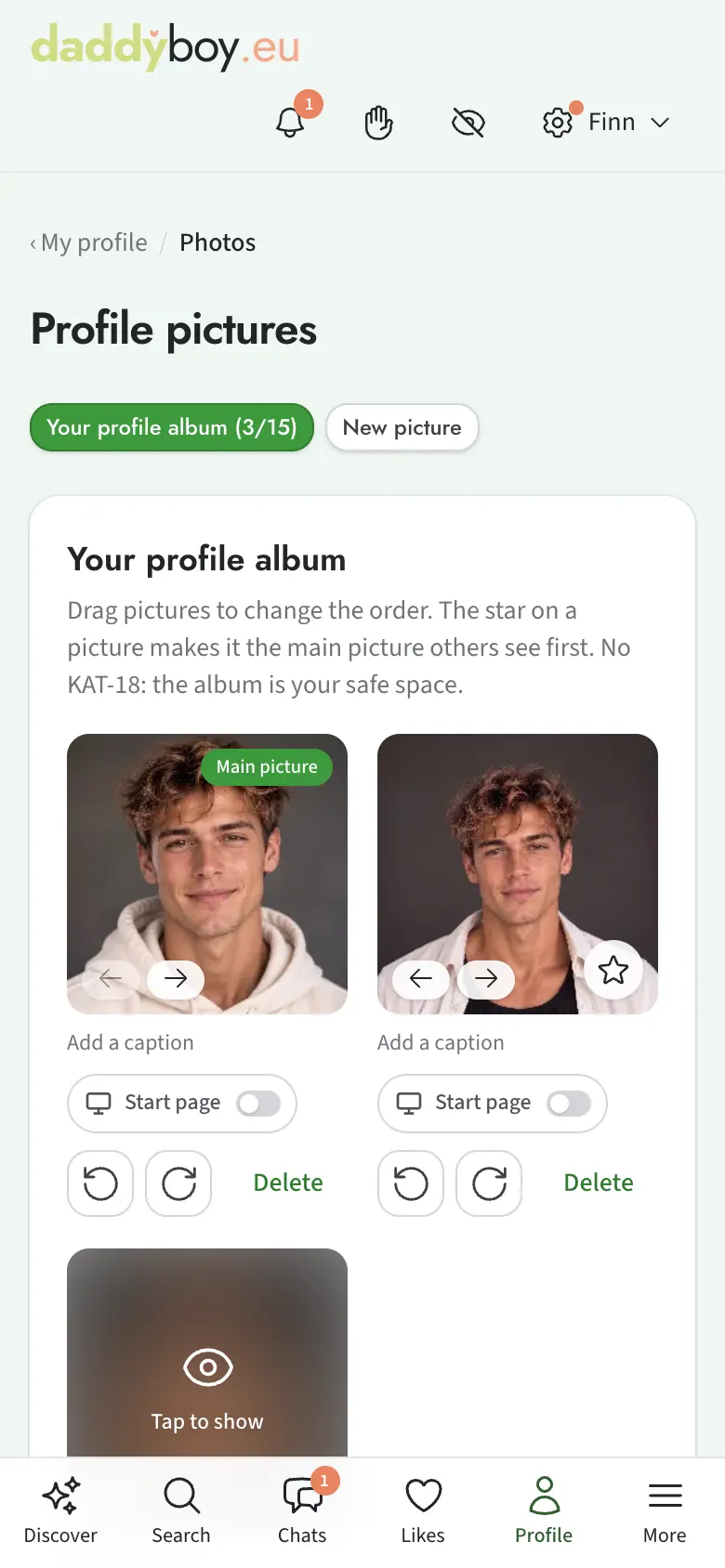
Under Profile › Photos you manage your profile album. It's your safe space: only clothed and erotic pictures are allowed here, nothing explicit.
Uploading
Tap "choose" or simply drag one or more pictures onto the page. Several pictures go through one after another: each gets its own category, its own crop and its own caption, and you submit each one separately. Use the caption to say in one sentence what the picture shows: it appears under the picture and is read out to members who cannot see. In the album, pictures without a description carry the pencil with "Describe picture". Before uploading you can rotate and crop the picture; the review sees exactly the section that will be shown later. You can still rotate a picture in the album after it has been uploaded.
Automatic description: if an approved picture has no caption, our software on our own server describes in one or two sentences what it shows, for example "The image shows a man in a green sweater standing in a park". Screen readers read this out to members who cannot see. You find the description in the album under the picture: "Use as caption" makes it your text and lets you change it, "Remove description" takes it away for good. The software estimates neither age nor origin.
Categories
When you upload a picture, you give it a category, which the review then checks:
| Category | Meaning |
|---|---|
| KAT-0 · Clothed | Everyday or profile picture, face, no nudity |
| KAT-16 · Nude without genital focus | Shirtless, bare back or bum, beach and gym photos |
| KAT-18 · Explicit | Erect genitals, clear genital focus, sexual acts |
You can upload any category; every picture is checked first by software and then by the team before anyone sees it. You can only see other members' KAT-16 pictures once your age is verified, and KAT-18 additionally requires Premium and your explicit consent. With KAT-18 switched on, the header carries the quick switch, the 18 in a ring: one tap hides explicit pictures everywhere, the next brings them back, handy when someone sits next to you. Under My account › Display you can choose to have KAT-18 disappear again by itself an hour after showing it. KAT-18 belongs in galleries or in the two intimate picture slots, never in the profile album.
Main picture
The star on a picture makes it your main picture, the one others see first. The main picture must be KAT-0, because it appears everywhere, including previews for visitors who aren't verified.
We like to see faces, it builds trust. It isn't required: if you'd rather not be recognised, use a picture of you without your face, for example from behind, cropped or doing your hobby, and put pictures showing your face in a gallery that you unlock for individual members only (chapter 9). Flat single-colour pictures, such as a white image, aren't accepted anywhere.
Review
Until the review is finished, the picture is marked "under review" and others can't see it yet. If the review puts a picture in a different category from the one you chose, you get a message with the reason and can object.
Showing on the start page
For each picture in your profile album, you can decide individually whether it may appear pixelated on the start page, even for visitors without an account. The pixelation is done on our side; the sharp picture stays behind the login. You can withdraw this at any time and choose how strong the pixelation is.
Limits
| Free | Premium | |
|---|---|---|
| Profile pictures | 4 | 15 |
| Of which erotic or explicit | 3 | unlimited |
| Galleries | 3 | 20 |
| Pictures per gallery | 20 | 100 |
| Explicit pictures in galleries | – | unlimited |
5. Your search profile
Under Profile › I'm looking for you set who you want to find. There are two kinds of details:
Basics are required criteria: the role you're looking for, age range, radius in kilometres, whether only profiles with a main picture are shown, and how complete a profile has to be at least. Anyone who doesn't meet these won't be suggested to you.
Wishes in the trait groups are not requirements: whoever meets them moves up in matching. Empty fields mean "don't mind".
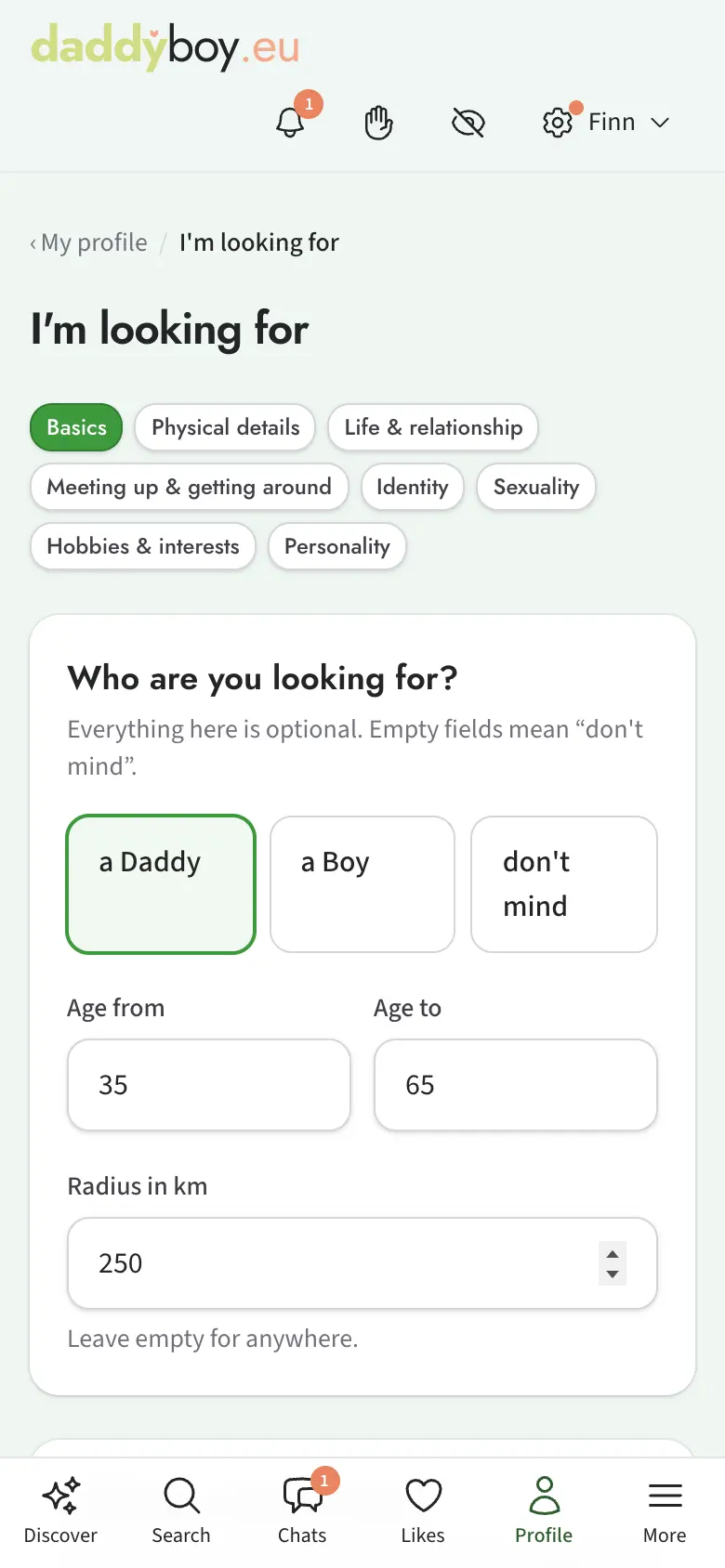
Your wishes and traits produce the match percentage you see on cards and profiles. On every member's page, "Matching" shows in detail which of your wishes the person meets, what you have in common and how many of their wishes you meet. Which of their wishes you don't meet stays a number, so nobody can work out what the sticking point is.
6. Discover and Search
Discover
The home page in the members' area has several sections:
- For you: Counters for likes, matches, resonance and visitors, and below them the latest faces: who likes you, who has winked at you and, with Premium, who has visited your profile.
- New and active today: Who has just joined and who has already been around today, most recently active first.
- Find a member: A field for a pseudonym, when you're looking for someone in particular.
- Lists: All members, New members, Active today, Near you, In your region and, with Premium, Online now and Approachable now. Lists without a place of their own cover the whole country; use the country choice to narrow them to one country.
- Suggestions for you: Five profiles that match your search profile today. They change daily.
- New from members: An extract from the feed (see below).
- Figures for your region; each figure links to the matching list.
- You're one of the first: If only a few members have signed up in your region so far, a card tells you so openly. It holds your invitation link to copy or share (whoever joins through it and verifies their age brings you both Premium days, chapter 12), and shows whether we'll let you know as soon as someone new joins near you. "Hide for a week" puts the card aside on this device.
The small tiles
All tiles use the same signs:
| Sign | Meaning |
|---|---|
| "New here" at the top left | Joined no more than a week ago |
| Green dot at the top right | Online now, meaning active in the last 15 minutes |
| Green ring at the top right | Was active today |
| Coloured frame and symbol at the bottom right | The status the member has set (chapter 13) |
| Number at the bottom left | Distance from you |
| ✓ after the age | Age verified |
The line under the name shows what connects you: "likes you", "winked at you" or, with Premium, "visited your profile". Otherwise it shows the town.
With Premium you see "Online now" for everyone. Without Premium you see it for members whose status is currently inviting contact. Anyone who has turned on "Hide activity" shows neither the dot nor the ring.
Feed "New from members"
In the Feed you see what's new with other members: new profile and gallery pictures, new things on their shelf, a new voice hello, who has just joined and who has been verified. The "My contacts" tab only shows your matches, chats and the people on your bookmarks, and "Mine" shows your own entries the way others see them. The newest of them are also under My profile in the box "You in the feed". You react to a picture as you would anywhere else, and "Write to him about it" opens the chat with a fitting opener. There are no counters and no public comments.
The feed only shows what you would be allowed to see on the profile anyway; shared or private galleries, intimate pictures and chat pictures never appear. If you don't want to appear in the feed yourself, turn off "Appear in the feed" under My account › Settings; earlier entries disappear too. With "Hide activity" or "Invisible" you don't appear anyway.
Search
Search shows all members who fit your basics. Above the results it says in words what the list is showing, for example "Members in Bavaria · active today".
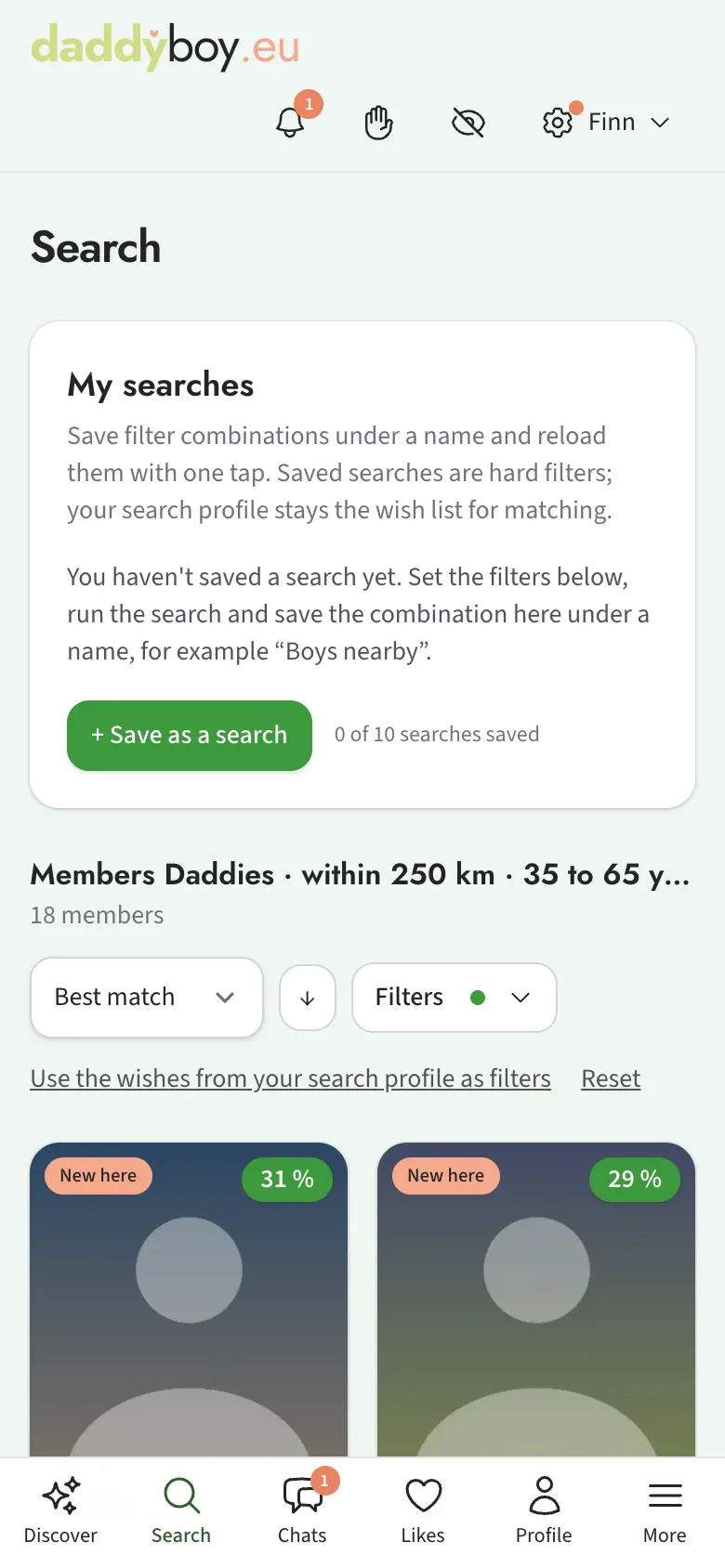
Sorting: Best match (Premium), Distance, Newly joined or Last active. The button next to it reverses the order.
Filters open with the filter button:
- Who you're looking for, age, radius or regions (country first, then federal state, canton or province; you can combine several regions and countries), pseudonym
- Quality: only with a main picture, minimum completeness, only verified age, last active
- Traits (Premium): hard filters on individual traits. The wishes from your search profile count in the "Best match" sorting; "Use the wishes from your search profile as filters" turns them into hard filters. Details about sexuality and identity deliberately can't be filtered on; they only count in matching.
For traits with multiple choices, you decide whether a result must have at least one of the selected things or all of them. Changes to the filters only apply to this search; your search profile stays as it is.
Saved searches
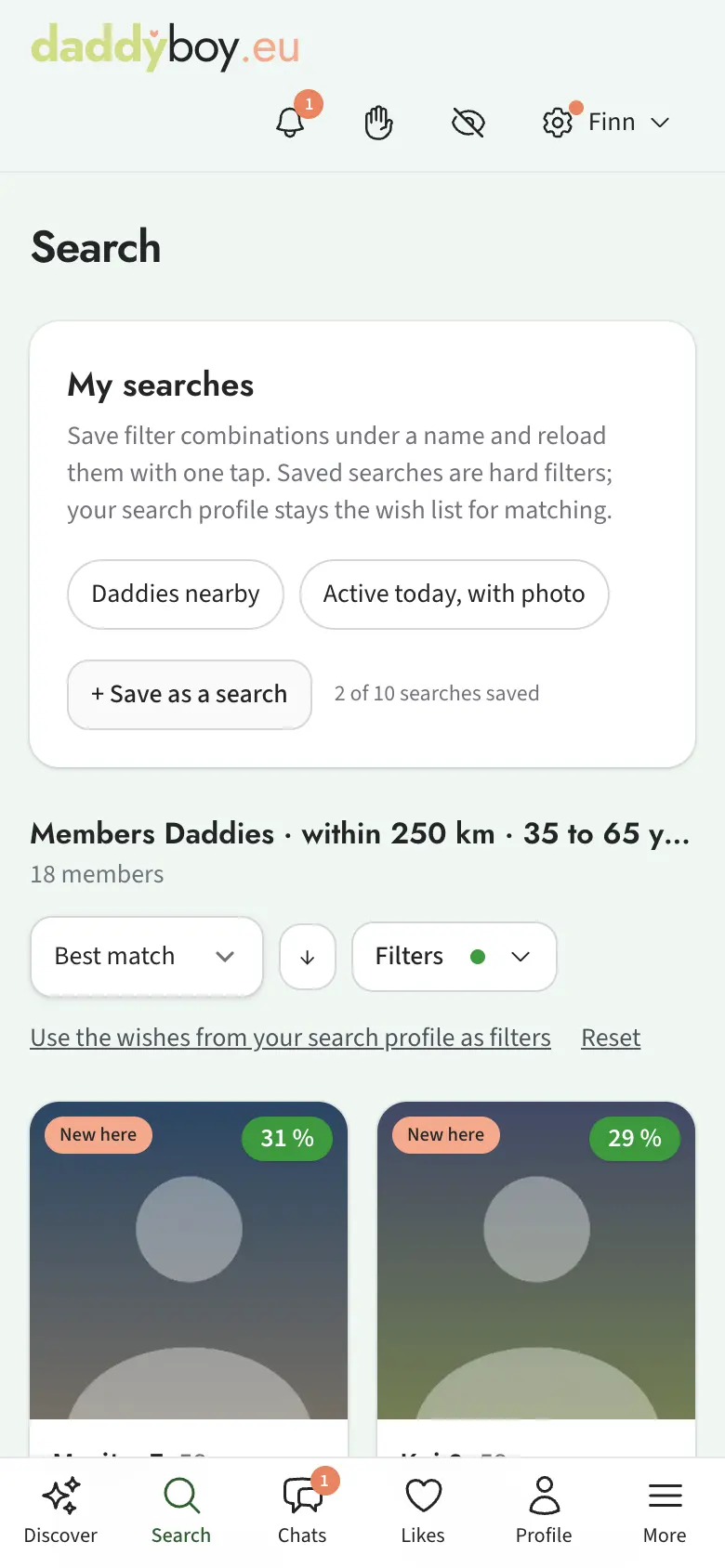
Save a good combination of filters with Save as a search and a name, such as "Boys nearby". It then appears as a button under My searches above the results. As a Free member you can save one search, with Premium up to ten. If you like, the summary email tells you about new results.
Member cards
The large cards in search and lists show the main picture, pseudonym, age, role, distance or town, and notes such as "Visiting …" or "On holiday right now". "New here" is at the top left, the match percentage at the top right, and next to it the dot or ring for online and active today. A star at the bottom left means: on your bookmarks.
Places
Under Places you can see where members live, sorted by country and with the number of members. Each place has its own page with a map and a short text; when logged in, you also see the members there. If you don't want to appear there as a tile, turn on "Do not show me on town and scene pages" under My account › Settings. You still count towards the place's number of members and stay visible in search.
Going out: the scene guide
Under Going out you find bars, clubs, saunas, parties, groups and counselling, sorted by country, state and town. On every town page they are split into bars and pubs, cafés and restaurants, clubs and parties, fetish and sauna, groups and culture, and counselling and health; pick one at the top. The search field finds a town or a venue straight by its name, say “Eagle”. Every place has its own page with a description, opening hours per weekday, details, a map, contact and places nearby. At the bottom it says when the entry was last checked. If that was more than a year ago, the page points it out.
Closed down? · Something wrong? Both buttons sit at the top below the address. With “Closed down?” the reason is already chosen, one tap on “Send note” is enough. With “Something wrong?” you tell us, signed in, what else is wrong: closed, moved, wrong opening hours, no longer a queer place, an event is wrong (only at places with events), or something else. For wrong hours you enter the right ones straight away, for a move the new address. Only the team sees your note and changes the entry by hand. If three members say a place has closed, it shows “Being checked”. If a venue has closed, its page stays for two more years, faded and marked “Closed since …”, without regulars, ratings or new pictures, and no longer shows up in lists, search or the feed. If it has opened again, tell us with “Open again?”.
New scene entry: If you cannot find a bar, club or group, tap “New scene entry” on the overview, on a town page or below a search without results. Signed in, you give its name and town, and “Did you mean …?” shows whether it is already listed. “Continue” takes you to the form: only name and town are required; add type, address, opening hours, contact details and a few words of your own as far as you know them. The team checks the suggestion before it appears in the scene guide. Photos, points and sponsorships are for verified scouts. Without an age check we keep the points of an accepted entry for you for twelve months; once you pass the check you become a scout, get them credited and become sponsor of your entries.
You and the place: Signed in, you set “Been there”, “Regular” and “You can meet me here” on the page, with a short note like “mostly Fridays” if you like, never with a time. “You can meet me here” ends after 90 days; a week before, we ask in the bell whether it is still right. Other members then see you as a tile at the place, your regular haunts appear on your profile under “Where I often go”, and if you both often go to the same place, it counts as something in common in matching. Under every regular's tile there is “Message him”; the chat then starts with “I saw you often go to … too”, and nothing is sent until you want.
Reviews: If you have been there, tap the stars next to the name at the top; that saves them. If you like, you write one line of comment under “Write a comment”. You can delete a comment and write a new one, but not change it. The stars count at once, the comment appears once it has passed our check. No names of staff or guests, no claims without proof. Owners and staff do not review their own place.
Your own pictures: With “Upload your pictures” you create a gallery for the place, up to 10 pictures per place and 25 a day. Other people must not be recognisable in them. You decide whether your name appears or “a member”.
If you do not want to appear as a tile on town and going-out pages, switch on “Do not show me on town and scene pages”; it covers both. If you run a venue yourself, you look after the entry via “Keep the entry up to date yourself” at the bottom of its page.
Scouts
Verified members can help build the scene guide as a scout. On the scout page you first search whether a place already exists (“Did you mean …?”), then complete it on site or add it as new: kind, address, opening hours, details, a few sentences of your own and photos. We work out the location from the address, never from your phone. The team checks every contribution.
Accepted contributions earn points, the most for a complete new place. Every released picture you upload to a place earns the photo points as well. Whoever adds a place or completes one nobody looks after becomes its sponsor and is asked once a year whether the entry is still right. Under My account › Scout you see your points per city, your contributions and sponsorships. Your balance, the statement and turning points into Premium days are under My account › Points. Points cannot be bought, given away or paid out. From 25 points in a town, “Scout Town” appears on your profile. You appear in your town's monthly ranking and in the overall ranking on the scout page unless you switch that off under My account › Settings; that is also where you hide the badge. The places you visit never appear there.
Is the stand still there?
In some venues our cards are out in a small stand. If it has been there for a month and you have set “Been there” or “Regular” at the venue, we ask you on its page in the scene guide, provided your age is verified: “Is there a DaddyBoy card stand here?” A tap on “Yes”, “No” or “Don't know” is enough. That way we know where cards are missing. Only the team sees your answer.
Help out: putting out cards
Help out explains how you make DaddyBoy better known in your town. With a verified age you can put out cards yourself:
- Order material: Choose the parcel, name the venues from the scene guide you have in mind (if a scene venue is missing, add it via “New scene entry” and choose it once it is approved), and choose how many stands you need for them: up to three to start, and we add 50 cards for each. Then give the address we should send it to. The team looks at every order and may adjust the amount, there is no entitlement. The parcel arrives in neutral packaging. Only those who pack it see the address, and we delete it 30 days after dispatch. You can withdraw an order that is still open.
- Ask at the venue: Cards are only put out with the consent of a person in charge of the venue, one stand per venue, in a spot the venue decides. A no is a no: we do not ask there again and make a note of it in the system. Nothing in public spaces, in letterboxes or on cars, and you do not approach guests directly.
- Report the placement: Find the venue, choose the spot, give the number of cards and take a photo of the stand as proof of the placement, in which no people may be recognisable. The person of the venue gives their name and signs with a finger on your phone. If the venue has an address in the scene guide, it receives a message from us and can confirm or object. If the venue has no network, report anyway: the report stays on your phone with photo and signature and goes out as soon as you have reception again and open “Help out”. Best open the page “Report a placement” before you go in.
Cards for friends: Without a stand and without a venue you order 15 or 50 cards, which arrive as a letter. Hand them over in person, to people you know, nothing in letterboxes, on cars or in public spaces. They earn no points, and you can order new cards every 60 days. If you order stands, you can have the cards for friends sent along: one order, one parcel.
Under My material you see what you have received, what is standing and what is still with you, along with your orders and placements and their status. There you confirm receipt and report anything lost; that costs you nothing.
Placements earn contribution points, which you exchange for Premium days under My account › Points: when the team accepts the placement, when the venue confirms, when the stand is still there after 30 days, for refilling (per venue every 30 days) and when many new members from your town come through the cards. If the venue objects or the team does not accept a placement, its points are taken back, and you read the reason in the bell.
7. Likes, winks, bookmarks and the handshake
On every member's page you'll find:
- Like: The heart at the top right of the main picture. If you both like each other, it's a Match and you can chat straight away, without a request.
- Wink 😉: A casual hello, either on its own or with one of the fixed messages, such as "You're hot". You can't write your own text. You can wink at the same member once a week.
- Bookmark: The profile goes into your Bookmarks.
- Notes: The link “My notes on …” below the bookmark folds your notes out, and “Add a note” adds a new one. Most notes are written in the chat (chapter 8). You write down what you want to remember, such as “doesn’t like his hair ruffled”. Every note gets a class: He likes, He doesn’t like, General or Personal. Only you see your notes. They need no bookmark and stay when you block someone. The pencil opens a note to change or delete it. Free: 5 notes per member. Premium: no limit, plus the class “Turns him on”, which stays folded until you tap it. When Premium runs out, everything stays readable; new notes only work again once you are below the limit.
- Message: opens the chat (chapter 8).
Below that are the flag for reporting and the circle with a slash for blocking (chapter 15).
The "known in person" handshake
If you know someone in real life, tap I know him on his profile. He gets the question "Is that right?" and confirms or declines; a decline is not reported to you. Once confirmed, you both see "You know each other in person". Publicly, only the words "known in person" appear, and only once at least two verified members have confirmed; never a number and never a list. Either side can withdraw the handshake. Under My account › Settings you can hide "known in person" on your profile.
The Likes page
Under Likes you'll find the tabs Matches, For you (who has sent you a like or a wink), From you (what you have sent; you can take likes back), Visitors and Feedback.
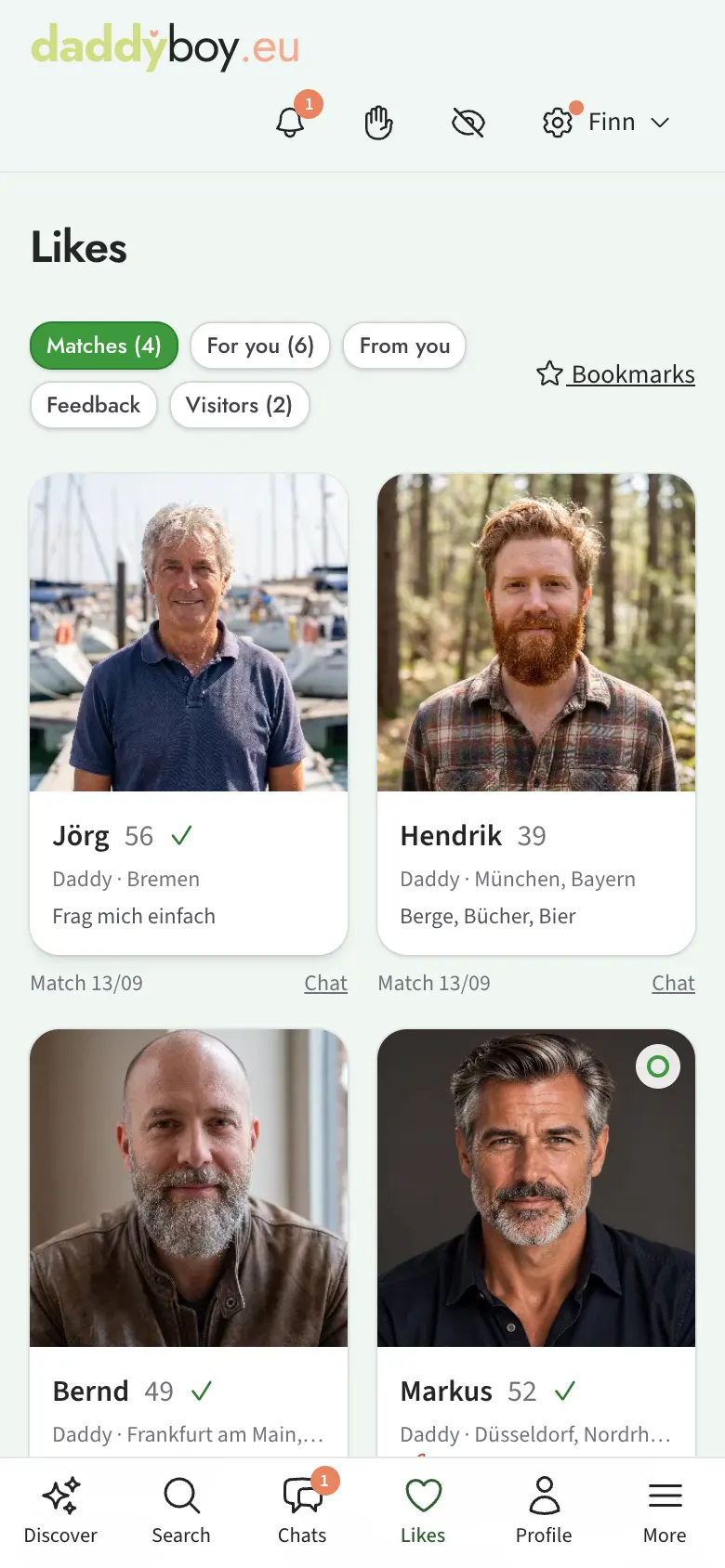
Who visited my profile? With Premium you see the visitors from the last 30 days by name; without Premium, only how many there were. Anyone who has made themselves invisible leaves no visit behind. Anyone who visited your profile on at least three different days within 30 days keeps coming back: with Premium these members appear in their own row at the top; without Premium you see how many there are. On the day of the third visit you get one notification. Several visits on the same day count as one day.
Stars and reactions. When you open a picture in full size, you can react at the bottom with one click, for example "Wow!" or "I've been there too". Gallery pictures can also get stars, in half steps up to five; profile pictures can't, because a star on a face rates the person, not the picture. Intimate pictures aren't rated at all. What your own pictures have received is shown under Likes › Feedback.
8. Chats
Request and acceptance
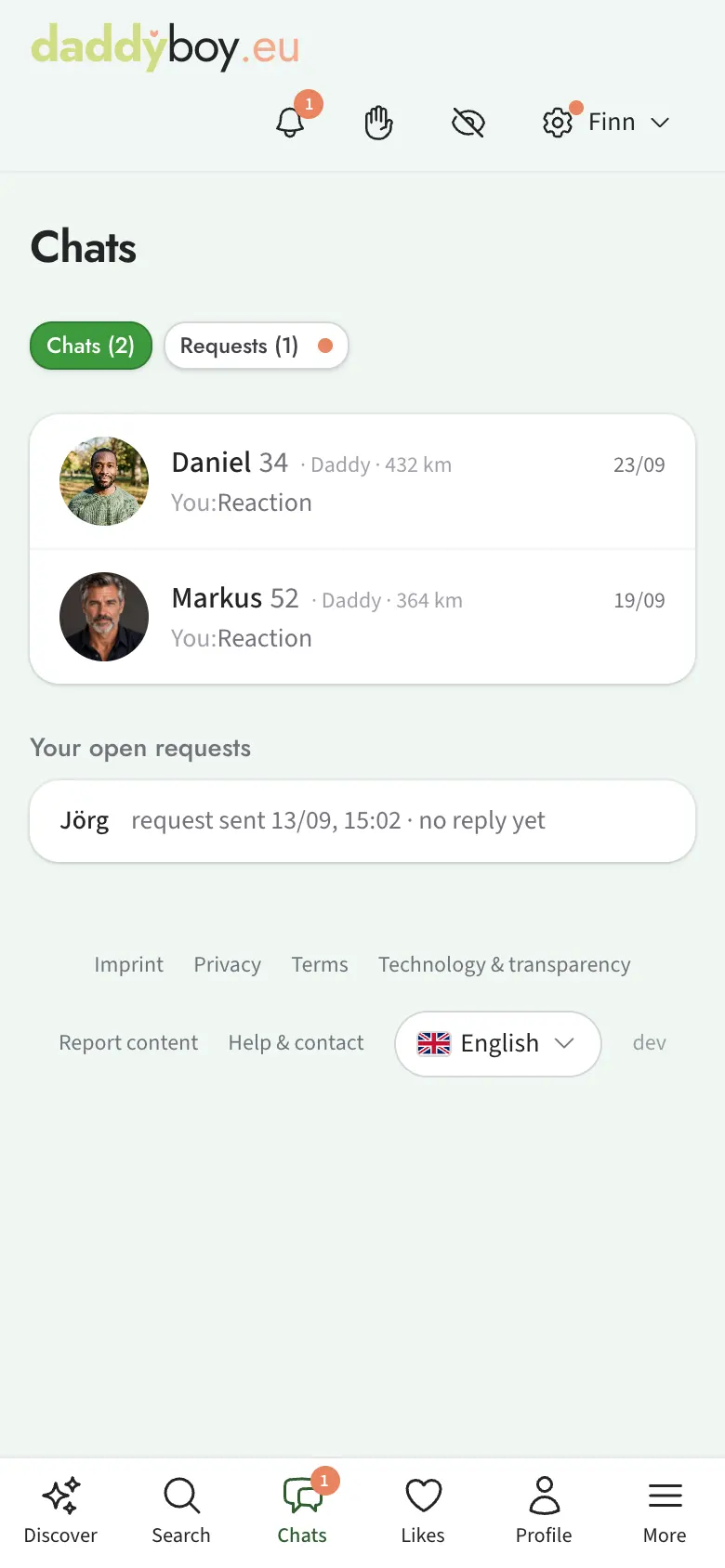
The first message to someone is a request. It lands under "Requests" for the other person until he replies, accepts or declines. Free members can send 5 new requests a day; with Premium there's no limit. After a match, no request is needed.
If a request isn't right for you, tap Decline. The other person then gets a kind note in the bell instead of silence, without any reason given, and can no longer write to you. If you change your mind later, simply write to him yourself.
Some members only accept new chats from members with a verified age. If you tap "Message" on their profile, a note explains this and takes you to verification. How to set this up yourself is described in chapter 13.
You start new chats with a main picture. Without one you can look around, reply to messages and keep running chats going. If you tap "Message" with someone new, a note takes you to your Profile pictures.
In the chat
The chat header shows the most important facts about the other person; tapping it opens their profile. If it says "On holiday until …", a reply may take longer.
On phones and tablets a chat opens in full screen: only the logo stays at the top, the details about the other person fold into one line (the arrow ▾ opens them), and only the conversation scrolls. The button with the four corners at the top right switches back to the usual view.
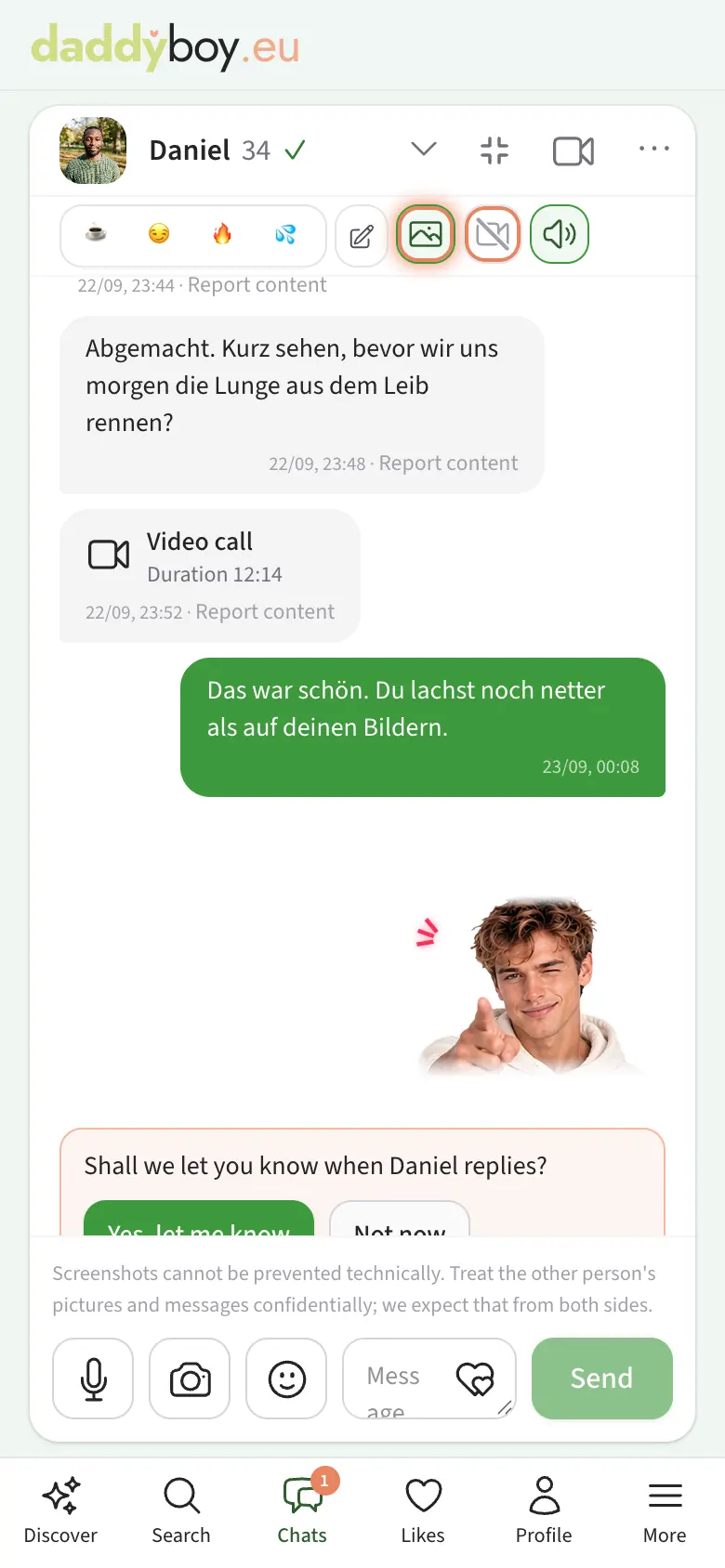
You can send:
- Text, and on a computer also using the emoji list next to the field. On a phone, use your keyboard's emojis.
- Pictures with an optional caption, including pasted straight from the clipboard; nothing is sent until you confirm. You choose whether the picture stays in the chat, can only be viewed once or disappears after 24 hours; the clock starts when the review approves it. You only receive pictures from the other person if you have allowed this in that chat. Free: 10 pictures a day, Premium: 100.
- Voice messages up to two minutes. Free: 20 a day, Premium: 200.
- Reactions: The button with the two hearts in the empty message field opens the selection with Markus and Finn. One tap sends the motif straight away. Reactions work as soon as you're chatting; flirtier motifs only appear if you're both allowed to see them.
- Gallery shares: Via the ⋯ menu you share one of your galleries with exactly this person.
Voice messages as text: if you switch this on under My account › Notifications next to the sounds, every voice message to you shows what was said. For older messages tap "Read as text". The other person sees next to the microphone that you read, and you see it for him.
Dictate instead of typing: You can also speak a message and send it as text. There is no separate button for it, dictation comes with your device. On iPhone, iPad and Android, tap the input field and then the microphone on your keyboard. On a Mac, press the dictation key (F5 with the microphone, switched on under System Settings › Keyboard), on Windows the Windows key and H. The text appears in the field, you can change it and send it as usual. The microphone next to the input field, by contrast, records a voice message. Your device or its maker recognises the speech, not DaddyBoy; what happens to the sound is decided in your device's settings.
Reply with a quote: To answer a particular message, swipe it to the right on a phone; on a computer, click the curved arrow next to it. Above the input field you then see what you are replying to (the cross or Esc cancels), and your reply shows that message as a small quote. Tapping the quote jumps to the original message. Self-deleting pictures never appear as a preview in a quote, and whatever you deleted from your history stays out of quotes as well.
Links in messages can be clicked. If one leads to another site, a notice first shows the real address and reminds you never to enter your password or payment details there. If a link looks odd, it's best to report it.
Switches: The same row holds four switches: receive pictures, allow video calls, allow voice calls, and sound. On a phone they are symbols (picture, camera, phone, speaker): filled means on, grey and struck through means off. After a tap, a line at the top says briefly in words what you switched. A ring around the switch for pictures or calls means: the other person has switched it on at his end, so you can send him a picture or call him. If he has not, the camera next to the message field or the phone or video camera in the header are grey and struck through; a tap on them explains why. Whether someone has the sound on for your chat stays private.
Notes: The button with pencil and sheet in the row below the header opens your notes on the other person; the menu ⋯ holds the same entry. At the top you choose the class, below it you write the note, Enter saves it. After a longer break you need not ask anything twice. They are the same notes as on the profile (chapter 7), and the other person never sees them.
Mood: In every accepted chat you use the emojis in the row below the header to say what you are up for right now: ☕ Just chatting, 😏 Flirty, 🔥 Getting a bit horny or 💦 Up for something erotic. Only the two of you see it. Your choice is filled, the other person's has a ring, and if you share the same mood, the button is filled and glows with a ring. With the mouse, a hint shows whose mood it is. You can change it at any time, and a second tap takes it back. It sends no message and no notification. If you want to send an 18+ picture while the other person only wants to chat or flirt, the preview asks you once more; you can still send it.
Suggest a topic: Want to talk about something in particular but don't know how to start? In the empty message field, tap the speech bubble with lines to the left of the sticker button. You see a list of topics, from “How you're really doing” to “Meeting up” and “Safer sex and boundaries”. At the top there are up to three suggestions for the two of you, such as a work you both have on your shelf, his trip or a note of your own; only you can read why a topic is suggested. Pick a topic and you see the card as it will arrive, and you can add a few words of your own (up to 140 characters). The other person gets the question “Would you like to talk about …?” as a message and answers Sure or Not now. The answer comes without a notification of its own; you see it on the card. Which topics are offered depends on your moods: more personal ones only appear once you both have set yours higher. Until a card is answered you can't send another one; after “Not now” the same topic rests in your chat for a week, and without an answer the card closes by itself after two days.
With Premium you can see whether the other person is online and whether your message has been read.
Getting notified: If you're waiting for a reply, the chat asks whether we should send you a notification when he answers. On the iPhone this only works once DaddyBoy is on your home screen (chapter 13). You can mute the sound for each chat separately.
Video calls
You can start a video call in the chat if the other person allows calls in that chat. Picture and sound are encrypted from device to device and are never stored. When the call runs through a DaddyBoy server, that server only passes the encrypted data on; it cannot read it, and the other person does not see your IP address.
With the phone in the chat header you call with sound only instead, without the camera. Next to it is the walkie-talkie. It is a switch, not a call: tap the walkie-talkie symbol and it is on at your end (filled); a ring around it means the other person has it on at his end. Once you both have it on, the talk button appears under the message field and you talk like on a walkie-talkie, without asking and without ringing: hold the button (on a computer the space bar), speak, let go. Pressing gives a short burst of static and letting go a short beep, as on a real radio, so you both hear when one of you starts and when he is done. How loud they are you set under My account › Notifications with the sounds. The other person hears you wherever he is in DaddyBoy; a slim bar then appears at the top so he can answer right away. After five minutes of silence the connection closes, and the next press sets it up again in a moment. This goes on until one of you switches the walkie-talkie off. The walkie-talkie comes with Premium; one of you is enough. Nothing of it is stored.
Voice calls have their own switch, which is on from the start; video calls you first have to allow in each chat. Times and daily limit are the same for both; the walkie-talkie does not count.
| Who's calling | Length |
|---|---|
| Both Free | Test call up to 5 minutes, once a day |
| One of you Premium | Up to 20 minutes |
| Both Premium | No time limit |
The daily limit only counts calls you start yourself. Whoever has Premium calls as often as he likes; being called costs you nothing.
Anyone who has set the status "Do not disturb" doesn't receive calls.
The ⋯ menu
Open your notes, archive chat, delete the history for yourself, end chat, report or block the person. An archived chat comes back as soon as a new message arrives. If you end a chat, only you can pick it up again. The other person then gets a kind note in the bell instead of silence, without any reason given. That's fairer than simply no longer answering; the lexicon explains why under Ghosting.
Screenshots can't be prevented technically. Treat the other person's pictures and messages confidentially; we expect that from both sides.
9. Galleries
Under Galleries you create your own collections of pictures, for example for holiday pictures or explicit pictures that don't belong in the profile album. For each gallery you choose who may see it:
| Visibility | Meaning |
|---|---|
| All members | Any logged-in member can open it |
| Shared people only | Only members you explicitly share it with, for example in a chat |
| Only me | Visible to nobody but you |
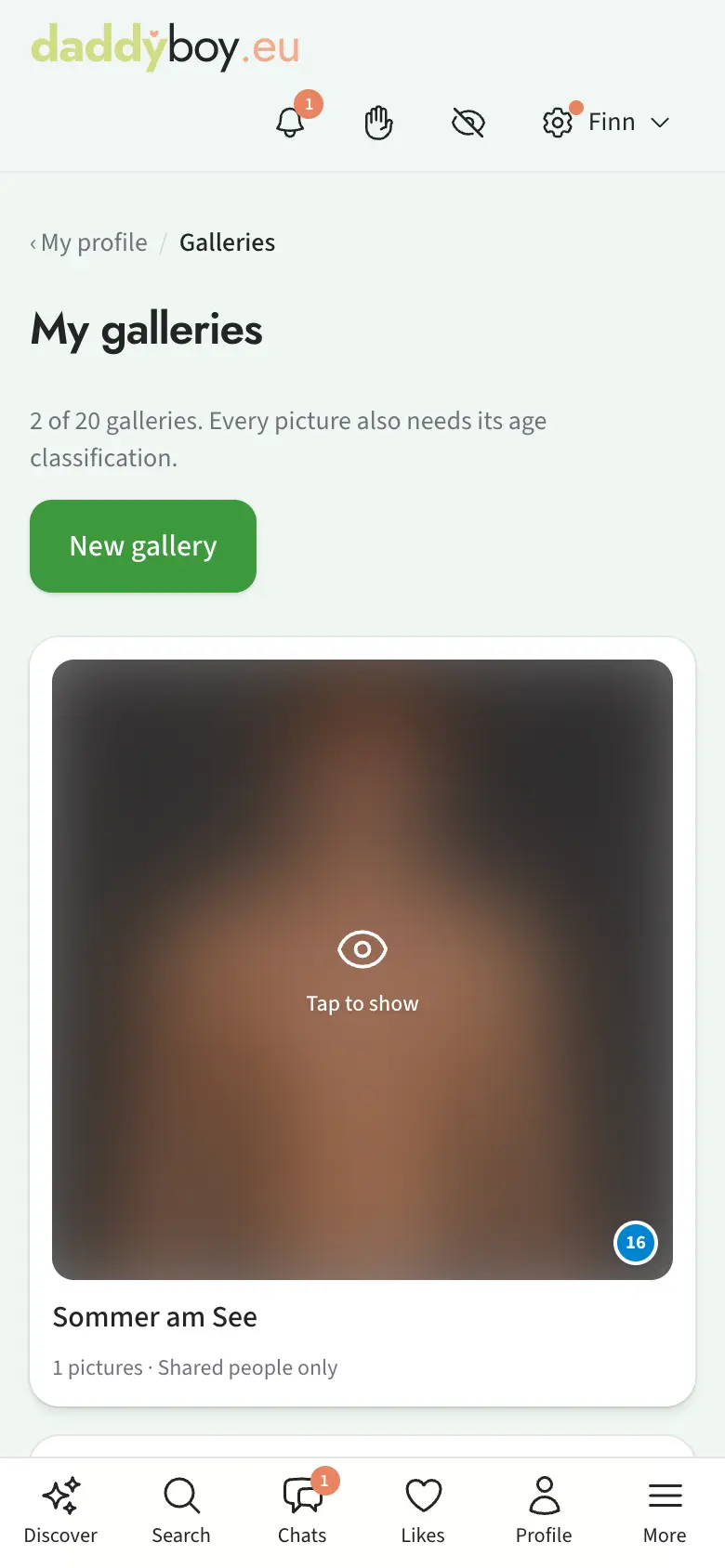
You upload pictures just as in the profile album, including several at once by dragging, and arrange them by dragging. A click on a picture opens it large. Explicit pictures in galleries are reserved for Premium members with a verified age. Anyone who wants to see explicit pictures has to switch this on themselves (chapter 13).
Videos
Your own galleries can also hold short videos: up to 15 seconds, with Premium up to two minutes. In the gallery you find the tab New video; the first tab is then called Media, because it holds pictures and videos. Videos don't go into the profile album or the chat.
- Choose a file or drag it onto the page (MP4, MOV or WebM). The video first plays only on your device, nothing has been uploaded yet.
- On the timeline you set start and end with the grips ‹ ›. If the video is too long, the frame already sits at the allowed length.
- To remove a part from the middle: tap its start, Split here, tap its end, Split here, then mark the middle piece and Delete marked piece. Only what is left counts.
- Use this moment as poster picks the picture for the tile, Preview shows the result in one go.
- Rate the video like a picture; the most explicit moment counts. You can switch the sound off. Then Upload video.
Only what you kept is stored; we remove location and device details from the file. Our team watches every video before anyone else sees it. Only you may be visible in it. Without Premium a gallery holds three videos and your account ten, with Premium five and twenty-five. On the tile a video shows the play sign and its length; a click plays it.
10. Travel mode and holiday notice
Two features for when you're away, which complement each other:
Travel mode
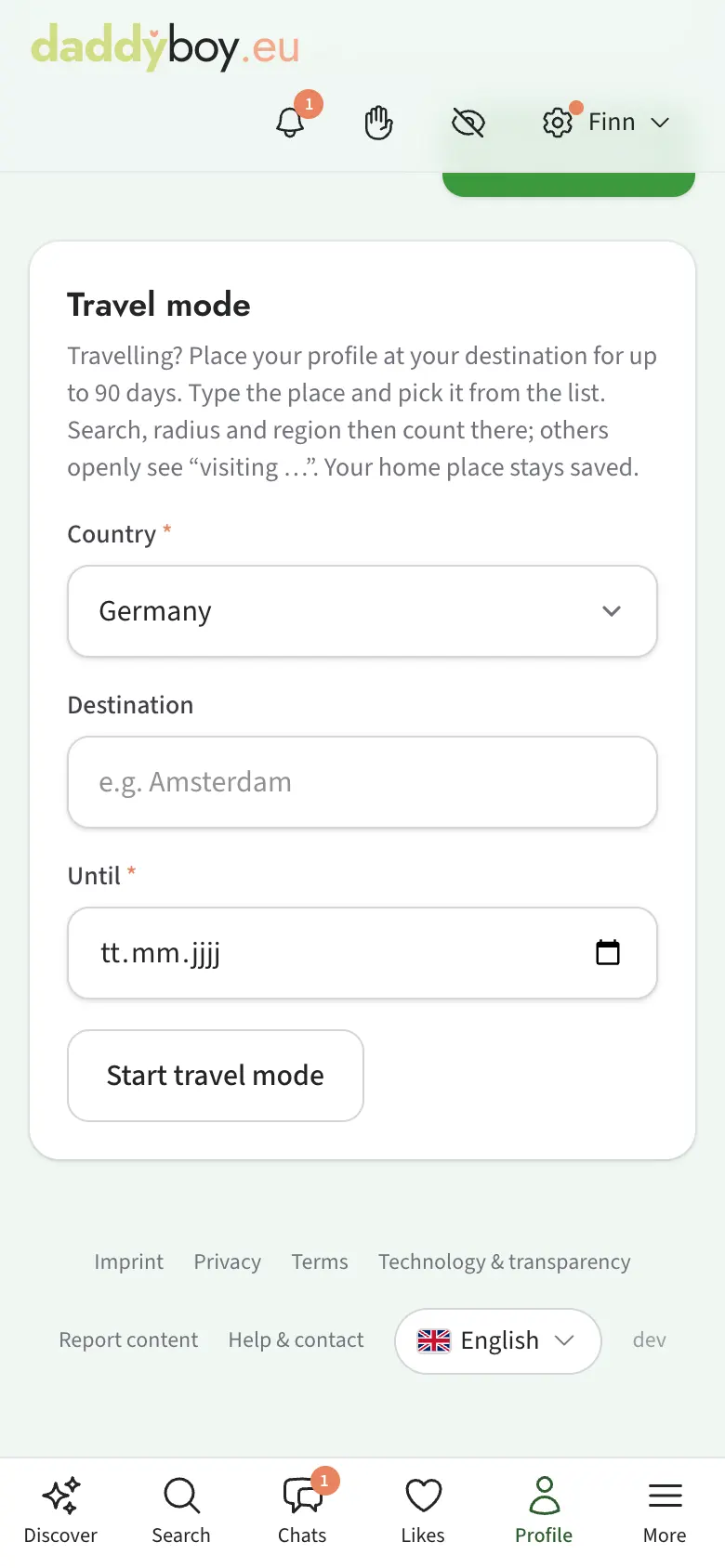
Under Edit profile › Location › Travel mode you move your profile to a destination for up to 90 days. Type the place, for example "Amsterdam", and choose it from the list. Search, radius and region then count from there, and others openly see "Visiting Amsterdam until 12 Sept". Your home town stays saved, and with "End travel mode" it counts again straight away.
Holiday notice
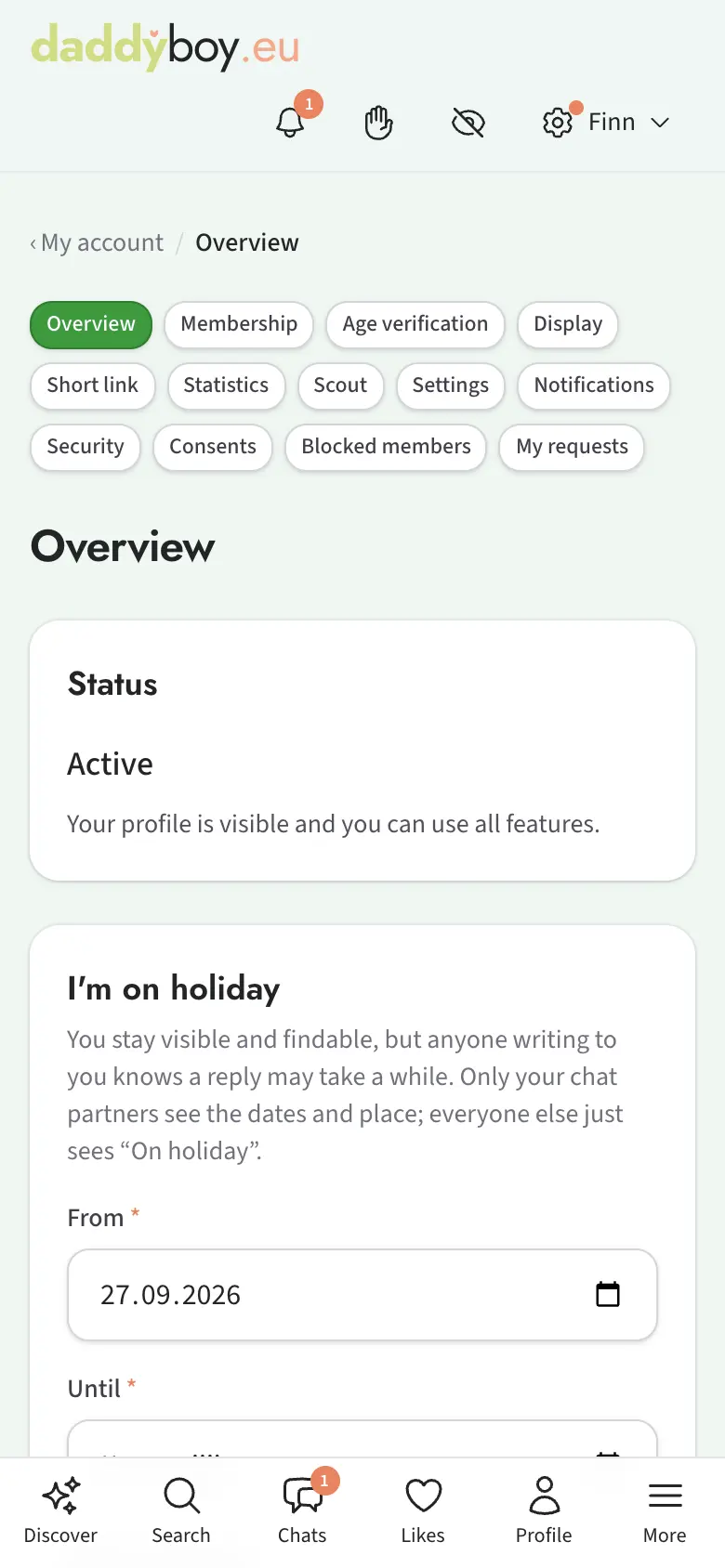
Under My account › Overview, enter the dates and place at "I'm on holiday". You stay visible and can still be found, but anyone chatting with you sees "On holiday until 22 Aug in Maspalomas, may reply more slowly" in the chat. Everyone else only sees "On holiday right now", without dates or place. The notice appears from the first day and disappears by itself after the last.
11. Age verification
We have to make sure only adults are here. That protects you and everyone else. We do the check ourselves, without an outside company, and your recordings never leave our server.
Under My account › Age verification you make three recordings:
- A photo of your ID card or passport. Beforehand, you cover the ID number and the machine-readable lines yourself with our tool; we don't need them, and the uncovered picture never leaves your device. If you cannot see or see poorly, tap Cover numbers automatically; with spoken instructions on, this happens by itself. If neither works, you can send the picture without covering as an exception after confirming it; only then does it leave your device uncovered, and the person checking it notes the number down nowhere.
- A short video in which you tilt your ID. The page shows you the order.
- A selfie video of about eight seconds: first looking straight into the camera, then two head movements that the page tells you.
You can take the photo of your ID right away with the camera or choose a picture you already have. On a computer the webcam often captures the ID blurrily. Continue on your phone then shows a QR code: scan it with your phone and you are signed in there and carry on with the recording. The code is valid for ten minutes and works once; don't show it to anyone, because whoever scans it is signed in to your account.
A person from our team looks at it, without facial recognition, usually within a day. You get a notification as soon as a decision has been made. Once the decision is made, all recordings are deleted. All we keep is a record that the check took place: when, with what result and by whom, but no picture, no name and no ID number.
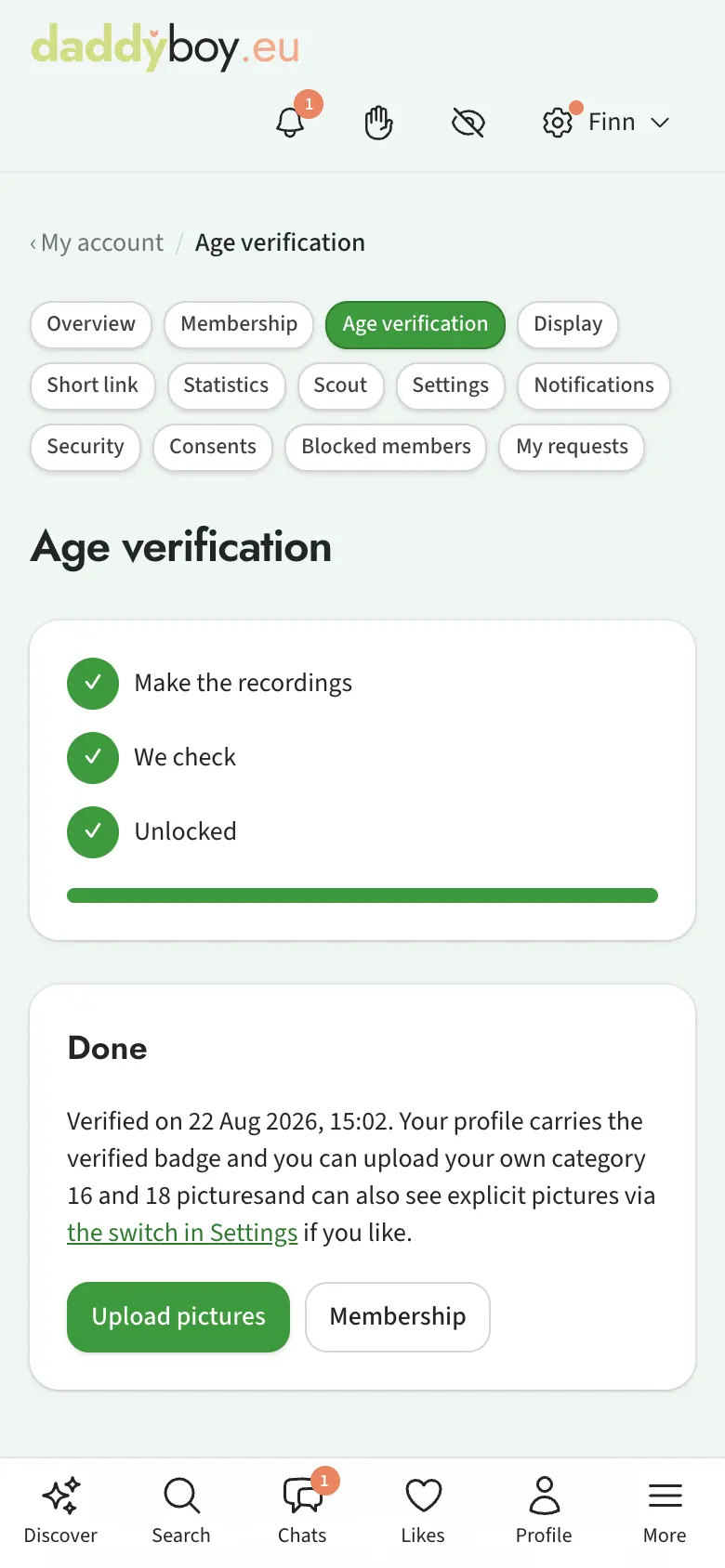
What verification gives you: the verified badge ✓ after your age, which stays forever, even without Premium; you see category 16 pictures and may show your own category 16 and 18 pictures; you can take part in the community picture review; and you can message members who only accept new chats from verified members. You see other members' KAT-18 pictures if you also have Premium and have given your consent.
Verification is included in Premium. What it costs Free members is shown on the age verification page; any amount you pay is credited against your first Premium booking. On Discover and on your profile, a box leads to verification; it disappears as soon as you're verified.
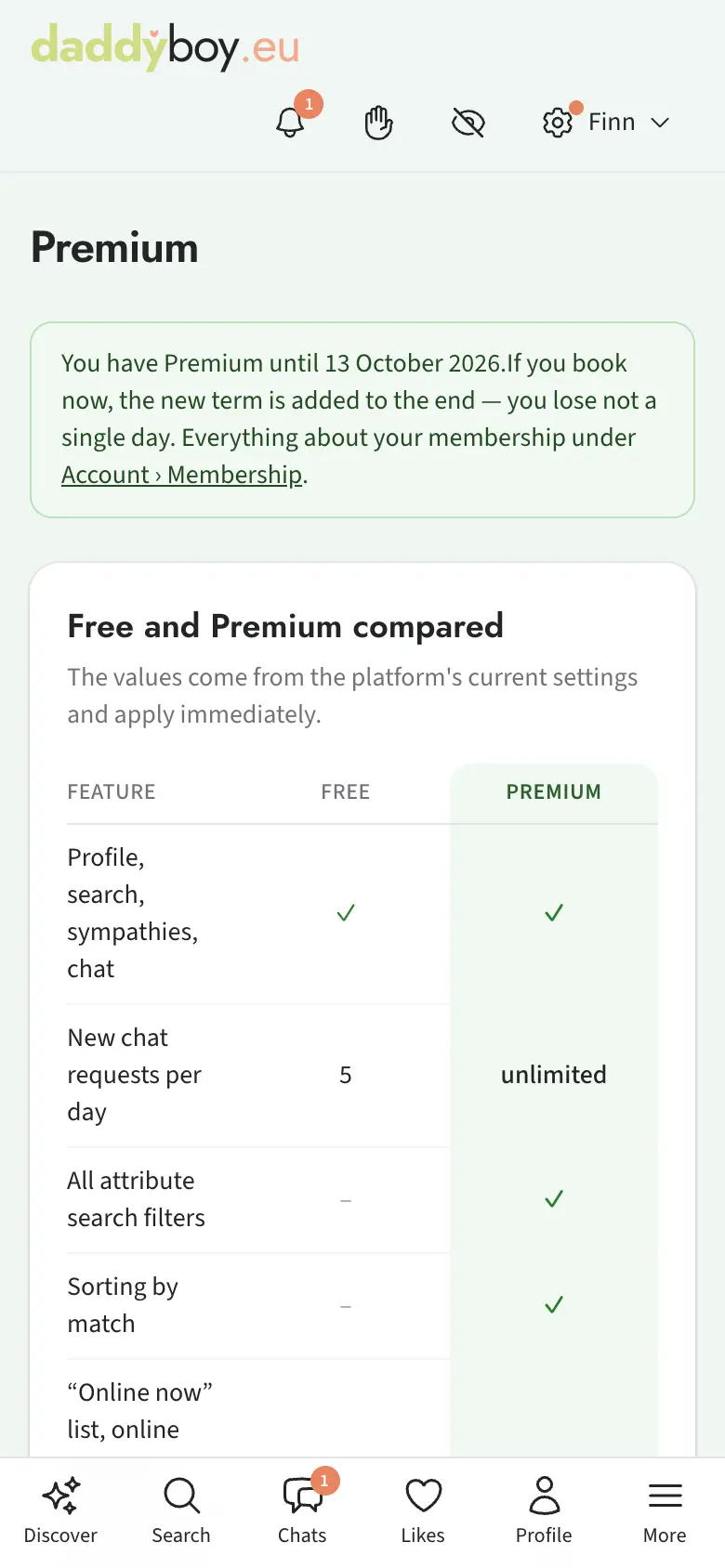
12. Premium
Premium is a fixed term, not a subscription. You choose one, three or twelve months, pay once, and after that nothing happens automatically: nothing renews, nothing is charged, and there's nothing to cancel. When the time runs out, you're a Free member again and keep your profile, your chats and your verified badge.
My account › Membership shows when your paid time runs until. A week before it ends, we send you an email so the end doesn't take you by surprise. If you book more time while the old one is still running, it's added on at the end; you don't lose a single day. Your statement shows "Bedrijf voor lekker internetten", not DaddyBoy. Your invoices are on the same page.
Premium mark. While Premium runs, a small “Premium” appears next to your name on your profile. That way others can see, for example, that longer video calls are possible with you. Under My account › Settings you hide it with “Show the Premium mark on my profile”; while you are invisible it never shows.
What Premium gives you:
| Free | Premium | |
|---|---|---|
| New chat requests per day | 5 | unlimited |
| Search filters by traits, sorting by match | – | ✓ |
| "Online now" list, online and read status in chat | – | ✓ |
| Profile visitors by name | – | ✓ |
| Browse invisibly | – | ✓ |
| Saved searches | 1 | 10 |
| Profile pictures | 4 | 15 |
| See other members' explicit pictures (with verification and consent) | – | ✓ |
| Video calls | Test call | no time limit |
| Age verification | separately | included |
| Handshake, winks, likes, bookmarks, voice hello | ✓ | ✓ |
| Private notes per member | 5 | unlimited |
| Note class “Turns him on” | – | ✓ |
| Third-party advertising | none | none |
The full list is under All features.
Founder price. Founder members pay less for good, on every booking, even if they take a break in between. The percentage is shown on the Premium page next to the crossed-out regular price.
Invite friends. Under My account › Membership you'll find your personal invitation link. If someone signs up through it and verifies their age, you both get free Premium days. If you currently have Premium, we add your days on at the end.
13. Privacy and discretion
You'll find most of this under My account › Settings.
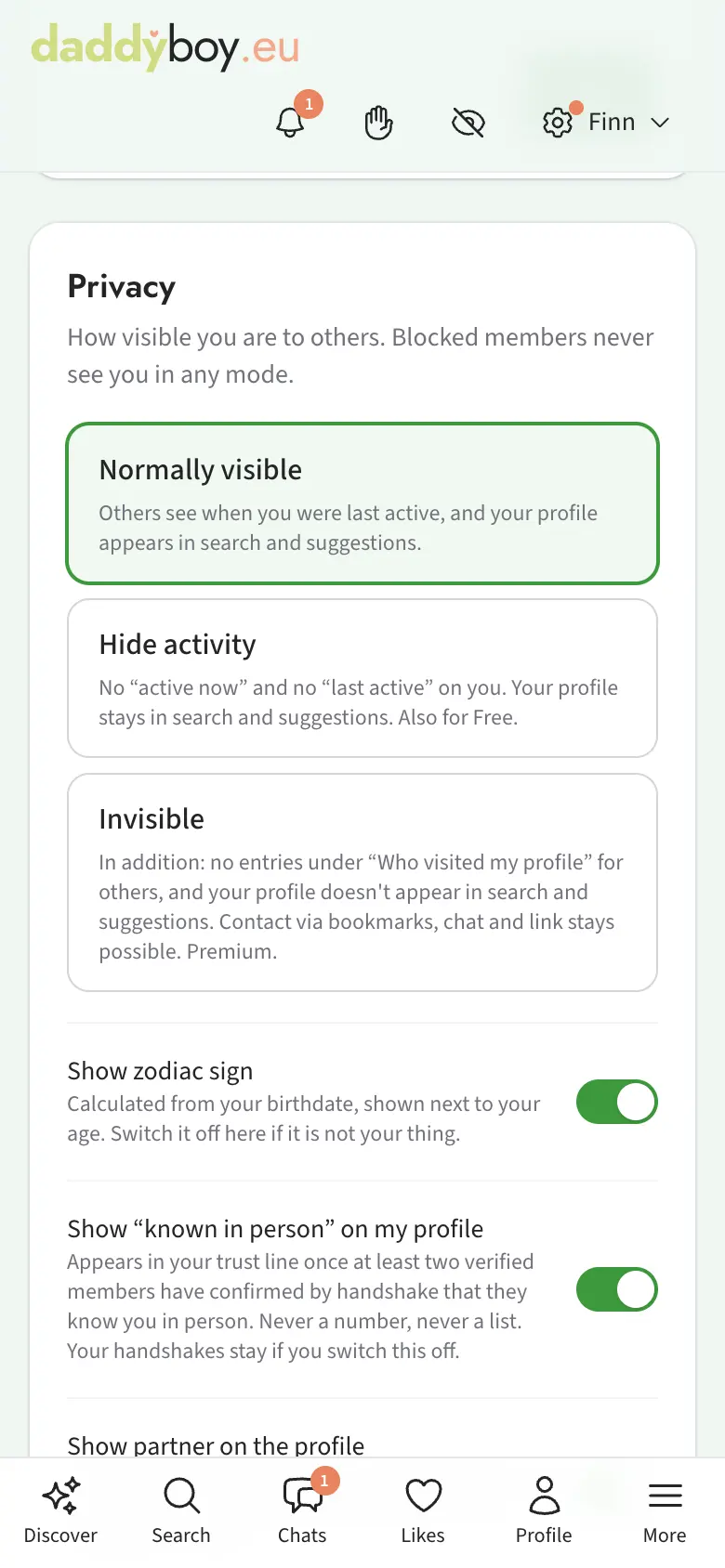
Visibility
| Mode | Effect |
|---|---|
| Normally visible | Others see whether you're online or were active today; your profile appears in search and suggestions |
| Hide activity | No "online now", no "active today" and no "last active" for you, and you don't appear in the feed. Your profile stays in search and suggestions. Also for Free. |
| Invisible (Premium) | In addition, no entries under "Who visited my profile" for others, and your profile doesn't appear in search and suggestions. Contact via bookmarks, chat and link stays possible. |
Blocked members can't see you in any mode.
More switches in the privacy section:
- Only verified members may message me: Only someone who has verified their age can then start a new chat with you. Chats that are already running, and any you start yourself, stay open. The switch is off to begin with. Not many members are verified yet, so things may go quiet with this switch on, especially at the start.
- Appear in the feed, Do not show me on town and scene pages, Show "known in person" on my profile, Show partner on the profile, Show zodiac sign and Show the Premium mark on my profile.
Your status: "What are you up to today?"
On Discover you set a status that shows on your card and profile picture for a while, with a coloured frame:
| Status | Means |
|---|---|
| Open for chats | Feel free to message me, I reply quickly. |
| Out and about right now | I have time today and fancy meeting up. |
| Up for a video call | A short video call suits me right now. |
| Just browsing | Only looking around, don't expect a quick reply. |
| Do not disturb | No video calls, I'll read messages later. |
You choose 1, 3 or 6 hours or "until tonight"; after that the status ends by itself. While one of the first three is set, everyone can see whether you're online right now. With Premium there's the "Approachable now" list with everyone who is currently inviting contact.
Explicit pictures
You only see pictures with genital focus or sexual acts if you explicitly switch this on. That requires a verified age and Premium. You can also choose to have category 16 and 18 pictures only appear sharp after a tap. That protects you from people looking over your shoulder.
Camouflage
If you install DaddyBoy as an app on your home screen, you can choose a neutral name and icon, for example "Notes" or "Weather". The page title in the browser then looks neutral too.
Quick hide: Tap the crossed-out eye or press Escape twice quickly. A neutral page appears immediately, and any radio that's playing stops. To get back, press and hold the title of the camouflage page for one second.
Appearance and language
Under My account › Display you decide what you want to see: colour scheme light, dark or following your device; explicit pictures (KAT-18) on or off, plus the hour for the quick switch; “show after a tap” as a screen guard; language German, English or Dutch, which you can also switch directly in the account menu.
Using DaddyBoy with a keyboard and a screen reader
DaddyBoy works without a mouse and without looking at the screen, with VoiceOver, TalkBack, NVDA or JAWS.
- Skip to content: The first stop of the Tab key on every page is the link "Skip to content". It jumps over logo and menu.
- Page changes: After every change the name of the new page is announced, and the focus sits at the start of the content.
- Windows above the page: Reporting, an enlarged picture or a video call keep the focus until you close them. Escape closes, and you are back where you were before.
- In the chat: A new message is announced with the sender's name, one of your own is confirmed with "Message sent". In the history every message starts with who wrote it.
- Dictation: Every text field accepts your device's dictation, including the message field in the chat. How to start it is described in chapter 8 under "In the chat".
- Without sound: Under My account › Notifications you switch on the visible signal. A new chat, a new message and a call then show on the screen and as a vibration, without naming anyone. The films in this handbook start with captions.
- Pictures: A picture is read out with its caption. So add a sentence to your pictures that says what they show: for members who cannot see, that is your picture.
- Legibility: Text and buttons keep the contrast the WCAG 2.2 guideline requires at level AA, light and dark. The page can be enlarged freely in the browser.
What works, what does not work yet and what we are building is stated openly on the page Accessibility. Something does not work with your screen reader or your keyboard? Write to us via Help & contact, we will fix it.
Notifications
Under My account › Notifications you set, for each event, how you hear about it: instant, in the summary or off. The events are new message, chat request, match, like and wink, profile visit, stars and reactions on your pictures, handshake, and new members for your saved search. By default: message, request and match instant, everything else in the summary.
"Instant" means a push notification on your registered devices, even when the app is closed. With "Send a test notification" you check whether it arrives; if your browser has blocked notifications, the page shows you how to allow them again in exactly your browser. Without a registered device you get an email instead, but only if you're not in the app at that moment. Emails never contain the text of a message. You can also turn off the sounds for new chats, messages and calls here. That's also where you set the volume, separately for the signals and for the radio: the radio can play quietly while you still hear chats clearly. "Listen to everything together" plays NDWRadio.de at your radio volume with the signals in between, so you get the overall impression. On iPhone and iPad you control the radio with the volume buttons.
For messages, you choose what the notification shows on the lock screen: just the name, name and first words, or a neutral "New notification". With camouflage on, it's always neutral.
The summary is an email with everything new since the last one: unread messages per chat, open requests, matches, likes, profile visits (by name only with Premium), feedback on your pictures, new members, results for your saved searches, three suggestions and news from us. You choose daily, weekly or off, plus the day of the week, time and time zone. The email only comes if there's something new. Open chat requests appear in every summary, with the waiting time and the link Decline the request kindly, until you have answered or declined them.
Quiet hours: A time window, for example 22:00 to 07:00, during which we hold back push notifications and instant emails. Afterwards, one combined notification with the numbers arrives. Off by default.
Under Emails about your account you decide on reminders after 3, 14 and 60 days without a visit, and on news by email, which you only get if you have agreed to it. You can turn both off here or with the link in any of these emails, without logging in.
The reminder about unread chats arrives as an evening email when a message to you has been waiting unread for 2 days, and once more after 7 days; after that, that chat stays quiet. All waiting chats are in one email, never with the message text. Chat requests are reminded only once. Every running chat has End the chat kindly and every request Decline the request kindly in case you're not in the mood; you confirm that on a page of its own. You can switch the reminder off here too, or with the link in the email.
New near you: When someone new near you signs up who matches your search profile and whose search matches you too, you get one notice as soon as their main picture is approved. At most one a day, and only during the day between 9 am and 9 pm. The first days often decide whether someone stays, and a friendly first message helps. The default is instant; if you don't want these notices, set the event to off.
With the switch My profile picture may appear in emails to other members you allow your KAT-0 main picture to appear small in other members' summary emails. Off by default.
When camouflage is on, all emails come from a neutral sender with a neutral subject line, without names, pictures or the platform name.
Emails about security, moderation, your contract and legal changes always arrive, regardless of these settings. We don't send advertising.
Notifications (bell)
The bell shows how many entries are new. Behind it is the list of all notifications, newest first; tapping an entry takes you straight to the right place. Entries are kept for 90 days. You only see profile visitors by name with Premium; otherwise they show as "Someone".
Installing as an app
In your browser menu, choose "Add to Home Screen" or "Install app". On the iPhone, notifications only work after this step. The number of unread messages then also shows on the app icon.
Consents
Under My account › Consents you can see what you have agreed to, and withdraw your consent to details about your sex life. Those details are then deleted immediately.
14. Your statistics and your short link
Statistics
Under My account › Statistics you can see how your profile is doing: profile visits, likes and winks received, how often your pictures were opened full size, reactions and ratings, how often your voice hello was played, how many bookmarks you're on, confirmed handshakes, chats that others started with you, and views of your short link. You choose 7 or 30 days, with Premium also 90 days, and each time you see the comparison with the previous period and your three most viewed pictures. Below the daily profile visit bars, dots mark the days you changed something: main picture changed, new picture, profile text, profile filled in further, voice hello approved, age verified, pause, travel mode or announced as new nearby. Tap a dot to see what it was. With Premium you also see the comparison: visits a day in the week before and from that day on. The block Where your visitors come from shows the way your profile was opened (search, Discover, feed, chats, galleries, places, your short link, from outside via push or email). Without Premium you see the most frequent way, with Premium every way with its share. Below the profile visit bars you see how many members keep coming back. When you're in demand shows on which weekdays and at what time of day your profile is opened most, once 20 visits have been counted. Without Premium you see the busiest time in one sentence, with Premium the whole week in three-hour blocks. We count the way and the time separately and without names. From visit to chat puts visits, sympathies, chats started and conversations side by side, from 30 visits also per 100 visits (with Premium compared with the period before), and shows requests still waiting for your reply. If many people look in but few write, you'll find a tip for your profile there.
The figures don't include any names; who visited you is shown under Likes › Visitors. The What's missing? block shows how complete your profile is and which areas are still empty.
Short link
Under My account › Short link you create a short link to your profile, for example to share on another network: dboy.eu/ plus six characters. You can also pick a name of your choice, 3 to 30 characters of lowercase letters, digits and hyphens. Guests see an invitation page with your pseudonym, age, role and town; members go straight to your profile. Anyone who signs up via the link counts as your invitation.
If you like, the invitation page shows your main picture: sharp only if it's a clothed picture, a KAT-16 picture always pixelated, and an explicit picture never. We ask you explicitly for this, and you can withdraw it at any time. "Generate new code" kills the old link immediately, and "Delete short link" removes it completely.
Contribution points
Helping out earns contribution points, for example for confirmed bug reports. Where else you can earn points is explained with each area. Under My account › Points you see your balance and every entry with what it was for and a link, and you turn points into Premium days (10 points make one day, from 7 days). The days are added to your term, no subscription. Points are credited once your age is verified; until then they are held for you. Points cannot be bought, given away or paid out.
If you are here on at least four days in a week, you get a few extra points on Monday; the days do not have to be in a row, and taking a break costs nothing. From 100 points from contributions, “Helps out” appears on your profile. The ranking under My account › Points counts contributions and the weekly bonus; whoever drops by regularly keeps the platform alive. Whether you appear in the ranking and show the badge is set under My account › Settings. My account › Points also lists what earns how many points and what everyone collected together this week. When you reach the badge, the feed says once that you are helping out now, but only while you show it.
15. Security, reporting and blocking
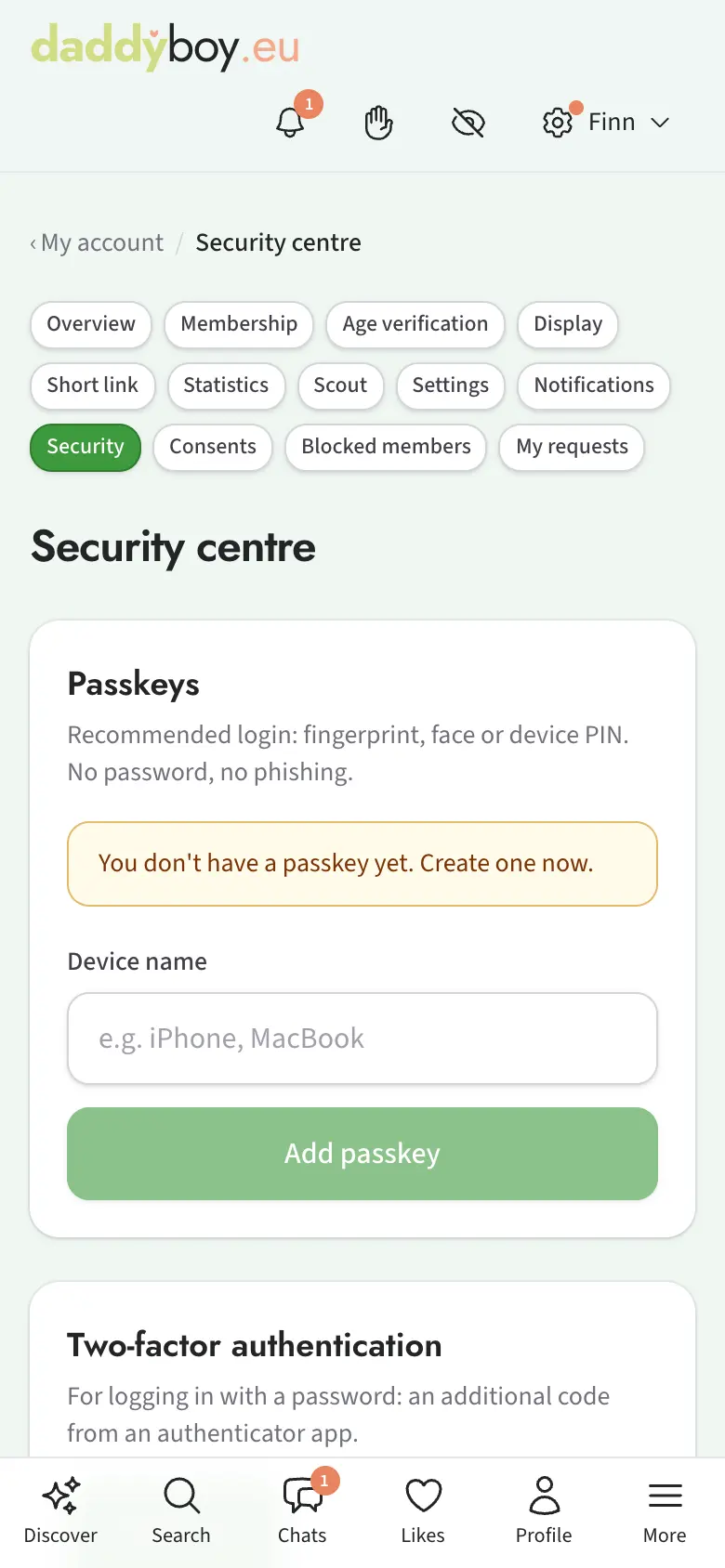
Security centre
Under My account › Security the page asks for your password once more first.
- Passkeys: The recommended way to log in, with your fingerprint, face or device PIN. No password, no phishing. You can add several devices and give them names.
- Two-factor authentication: An extra code from an authenticator app when logging in with your password.
- Change password: Your password stays as a fallback, even if you use passkeys.
- Logged-in devices: Log out devices you no longer use.
- Recent logins: For a device we haven't seen for 90 days, we send you an email.
Discover reminds you of open steps as long as neither a passkey nor two-factor login is set up.
Reporting
Every profile, picture and message can be reported. Describe what happened as precisely as you can. You get a confirmation of receipt and the outcome; your reports and how they turned out are listed under My account › My requests. Even without an account, anyone can report something using the Report content link in the page footer.
Blocking
Blocked members can't see your profile, don't show up in your search and can't write to you. You'll find the list under My account › Blocked members, where you can also lift blocks again.
Community picture review
Verified members can help classify borderline pictures. "Review pictures" then appears on Discover. You see a picture and the definitions of the categories, and decide independently of the member's own assessment. Several votes give the result, and the team double-checks when in doubt.
Help, questions and bugs
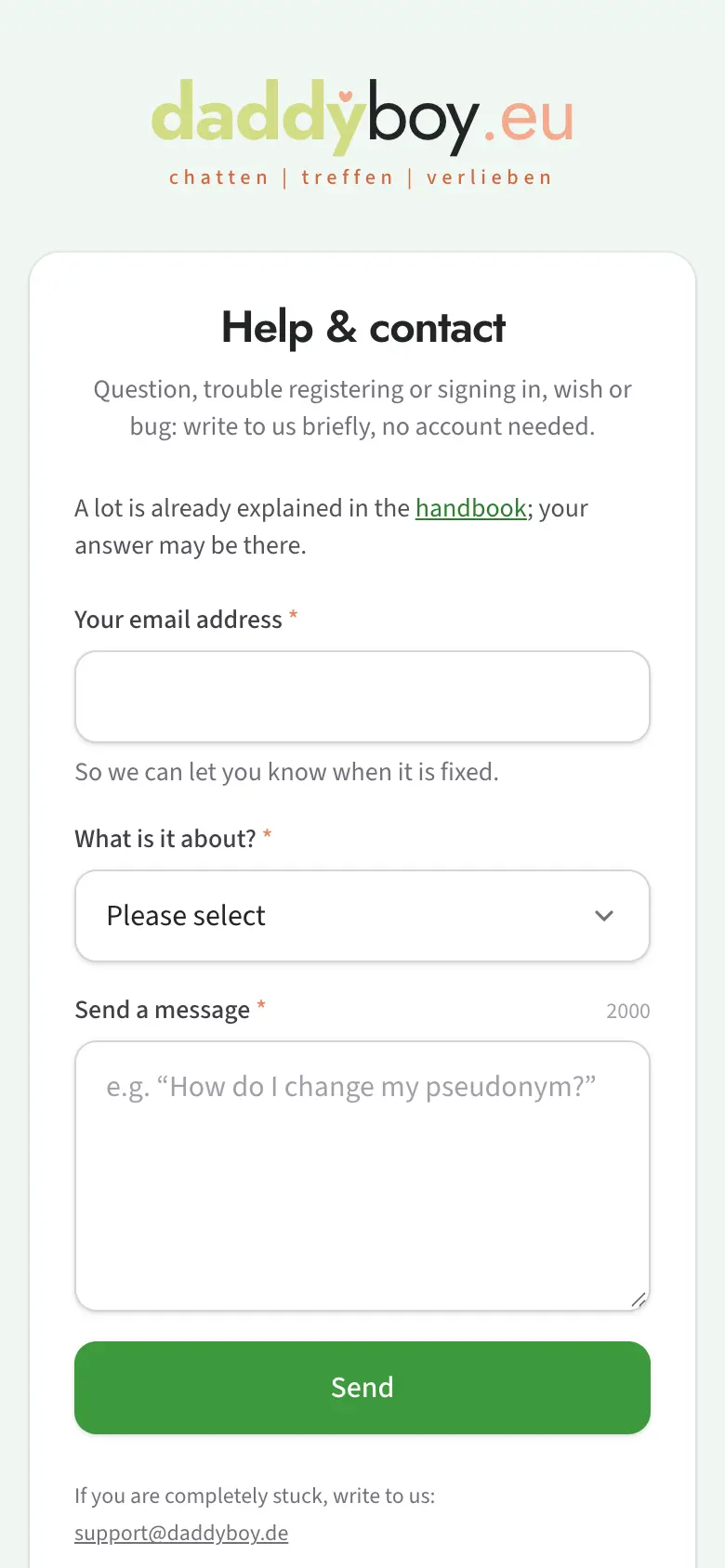
Something isn't working, you have a question about your account or payment, or you'd like something? Under My account › My requests, use "Start a new request" to send a request; for a bug you can attach a screenshot, and the page and browser are sent along automatically. The team's reply and your whole conversation are on the same page. Without an account, use the Help & contact page, for example if registration itself isn't working. For confirmed bugs we say thank you with contribution points.
What does “no cap” mean, what is a bear, and why does ghosting hurt? The dating lexicon explains terms from dating, the community, health and youth slang. If something is weighing on you, Help with worries and heartache lists places to turn to in Germany, Austria, Switzerland and the Netherlands, anonymous and free.
16. Pausing your account, downloading your data, deleting your account
All under My account › Overview.
Take a break
Step away without losing anything. You disappear from search, feed and suggestions, and nobody can write to you. Anyone who opens your profile through a link, say from an old chat, still sees it, marked as paused. All your data stays, and one click on End the pause brings you back. During the pause you get no push notifications or emails; the bell collects visits and likes, and when you return you see how many members looked in. Any Premium time you have keeps running meanwhile.
Download my data
A copy of all the data we store about you: profile, traits, consents, pictures, chats, likes, shelf, log. Other members appear in it only as "Contact 1, 2, …". You get an email as soon as the copy is ready. It stays available for download for a few days.
Delete account
Under Request deletion we first ask you, voluntarily, for the reason. After that, pausing is offered prominently as the alternative: Pause instead of deleting takes you out of sight at once and you keep everything. If you choose "Too quiet or too few members near me" and only a few members have signed up in your region, you'll also see the card "You're one of the first" there. If you still want to go, you confirm the deletion below with your password. After that you have 14 days to change your mind. Once they're up, your account, pictures and chats are deleted for good. Legal retention obligations, for example for invoices, remain unaffected.
A week's time: If you joined only recently and choose “Too quiet or too few members near me” or “Not what I was looking for” as your reason, we offer to keep your profile visible for 7 more days. It's voluntary, and “Request deletion definitively” sits right next to it as an equal choice. During the week everything stays as usual; the overview and “Discover” show when it ends. With I’m staying you stop it any time, with Delete now after all the deletion starts at once. If you do nothing, it starts by itself after the week with the usual 14 days, and you get an email with what happened during that week. The week is offered only once per account.
17. Radio
Under Radio you'll find gay web radio stations from several countries to listen to in the background. Tapping "Play" starts the station; a bar appears at the bottom with the station, the track title (if the station sends it), station choice and stop, and it keeps playing while you move around DaddyBoy. When you log out, or press Esc Esc, the stream stops immediately. How loud the radio plays is set under My account › Notifications with the sounds, independently of the chat signals. On a phone it keeps playing when the screen is locked, and uses your mobile data while doing so.
The stream comes directly from the station, not through us. The station sees your IP address, but nothing from your account.
18. Frequently asked questions
Why can't I see someone's picture? Either it's still under review, or it has a category you can't see: KAT-16 and KAT-18 require a verified age, and KAT-18 also requires Premium and your explicit consent.
Why can't I message anyone any more? As a Free member you can send five new requests a day. Existing chats aren't affected. You can carry on tomorrow, or without a limit with Premium.
Why can't I message one particular member? He probably only accepts new chats from members with a verified age. The note by the "Message" button takes you to verification.
Does Premium renew automatically? No. Premium is a fixed term that you pay for once. After that you're a Free member again and nothing is charged.
Someone has doubted my age. Age verification removes any doubt: a few minutes with your ID and camera, and then you carry the verified badge.
Why does my profile show a different town from my village? Your postcode gives the main town of the area. That's intentional: others never see your exact address.
What happens to the details about my sex life if I withdraw my consent? They're deleted immediately; the rest of your profile stays.
I want to go away for a while, but not delete my account. Take a break under My account › Overview. For a holiday during which you still want to be found, there's the holiday notice.
Where can I see what has changed on the platform? Under What's new in the account menu.
Where can I find the imprint, privacy policy and terms of use? In the footer of every page.
My question isn't here. Write to us via Help & contact and we'll get back to you.